Using Holly to Conduct a Salary Study in City of St. Louis
Last updated: August 14, 2026
For each of your class specs, you can use the Market tab and Holly's similarity analysis to build a high-confidence salary survey in a few steps.
Note: Holly's similarity algorithm surfaces comparators based on job class specifications and salary data. See more information on how matching works here:📄 How Holly's Spec Similarity Score Works.
Its recommendations are designed to support your professional judgment, not replace it — you're always in control of which comparators make the final cut.
Components of a Salary Survey
Holly's salary survey pulls together the benchmark data connected to your class specs, so you can see where a role sits across a fuller range of the market. Before you export, it's worth reviewing the underlying comparators so the study reflects your professional judgment, not just the algorithm's first pass.
Tip: Need this data for many classifications at once? The 📄 Salary Survey Bulk Reportcompiles the market benchmarks from each spec's Market tab into a single Excel workbook, one tab per classification with a summary page. Validate your comparators here first; the report is only as good as the benchmarks it compiles.
How to Gather, Review, and Validate Your Analysis Results
Step 1: Pair the class spec with a job announcement
This is the step that's most specific to how City of St. Louis's class specs are written, and it's worth doing before you ever click into the Market tab.
Job announcements, by contrast, capture the department-specific detail that actually differentiates two positions with the same title (for example, an HEO1 posted for Water looks very different in practice from an HEO1 posted for Waste). Holly's similarity engine reads that detail.
Check whether a current job announcement exists for the position. The Class & Comp team should look this up before starting a Market Analysis on that spec using this website: https://www.stlouis-mo.gov/jobs/index.cfm.
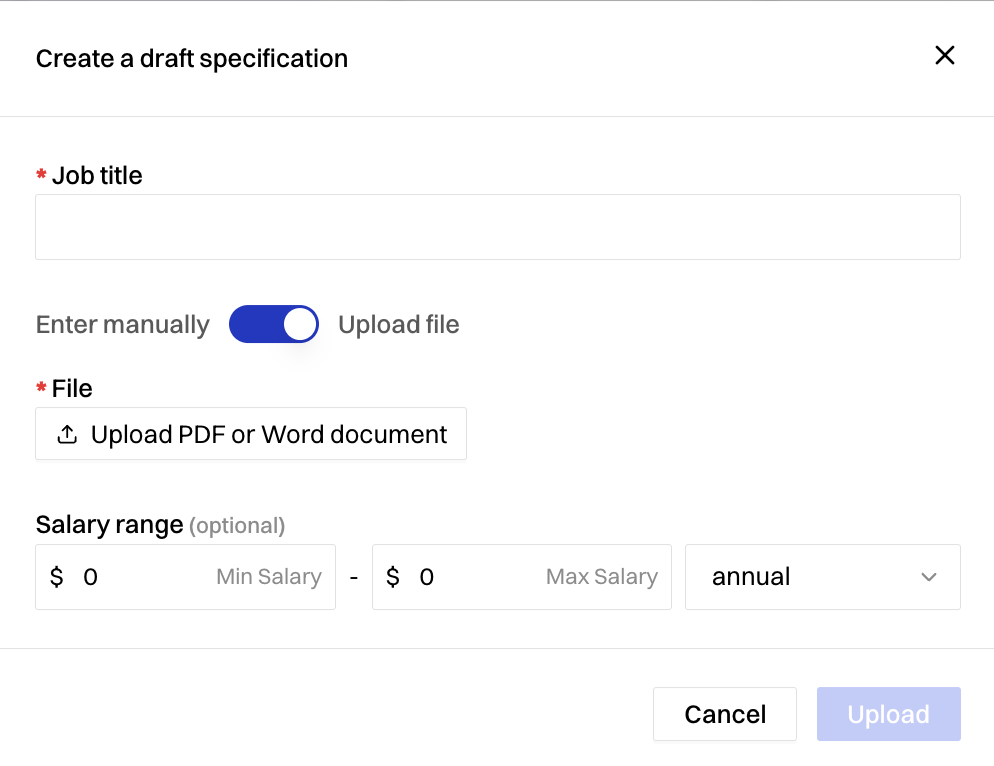
If a job announcement exists: download it and upload it to Holly as its own document by clicking Create new and Start from draft. Add "(Job Announcement)" to the end of the title so it's easy to tell apart from the spec at a glance (e.g., "Engineering Manager (Job Announcement)").
If no current job announcement exists, reach out to Talent Acquisition and ask for a historical copy (if possible). The reason this is worth the extra step: historical announcements still carry that department-specific duty detail even years later, and that detail is exactly what improves match quality. A general spec with no announcement to pair it with is more likely to pull in comparators that share a title but not the actual scope of work.
Keep job announcements and class specs as separate uploads in Holly — don't merge the two into one document. Running the Market Analysis with both available (as separate, clearly labeled documents) gives Holly the fullest picture without blurring the line between the official spec and the announcement's added context.
Run an Internal analysis to confirm the differences between the class spec and the job announcement are appropriate.
This same logic applies to Evergreen specs.
If your team is evaluating a set of Evergreen-proposed specs before adopting them, it's better to have these class specs kept separately. This lets you run a similarity comparison between the Evergreen version and your current spec before committing and gives Holly's analysis a chance to flag anything that changed along the way — including things worth a second look, like a supervisory function that a proposed revision may have quietly dropped.
Step 2: Open the class spec in question and go to the Market tab
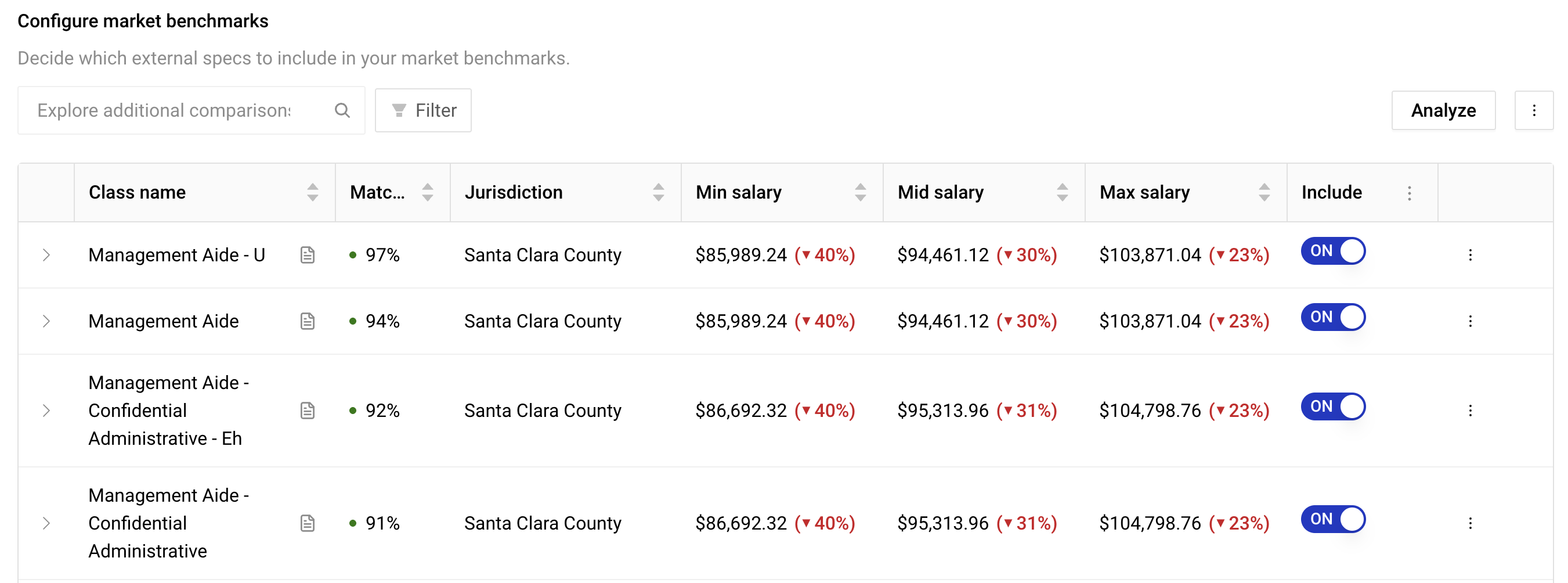
In the Market tab, you'll find a table of potential benchmarks under Configure Market Benchmarks.
If you see a blue Start Analysis button, click it to load the benchmarks for the first time.
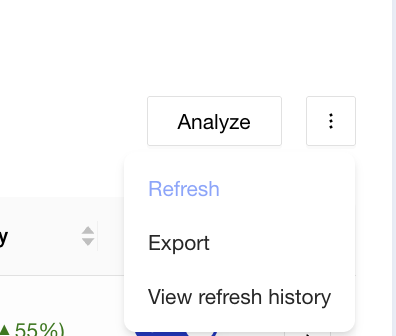
If a table is already loaded, confirm the comparators you expect are included. If agencies were added after the original analysis ran, click Refresh (in the three-dot menu on the right) to pull those in.
Step 2: Confirm your list of results list has the desired agencies
Open the Market Analysis and review the full list of jurisdictions and job classes surfaced as comparators. At a glance, confirm the jurisdictions you expect are present and the role names look relevant to your study.
If you would like to add data from other jurisdictions, please reach out the support team to do so!
Step 3: Use Holly's filter tools to narrow the benchmarks displayed
Holly's default is to surface as many relevant benchmarks as possible (typically all matches at 70%+ similarity). We offer filters for agency, top matches, and more, so you can reduce what you're looking at without losing visibility into the full set.
Step 4: Drill into entries to validate each comparator
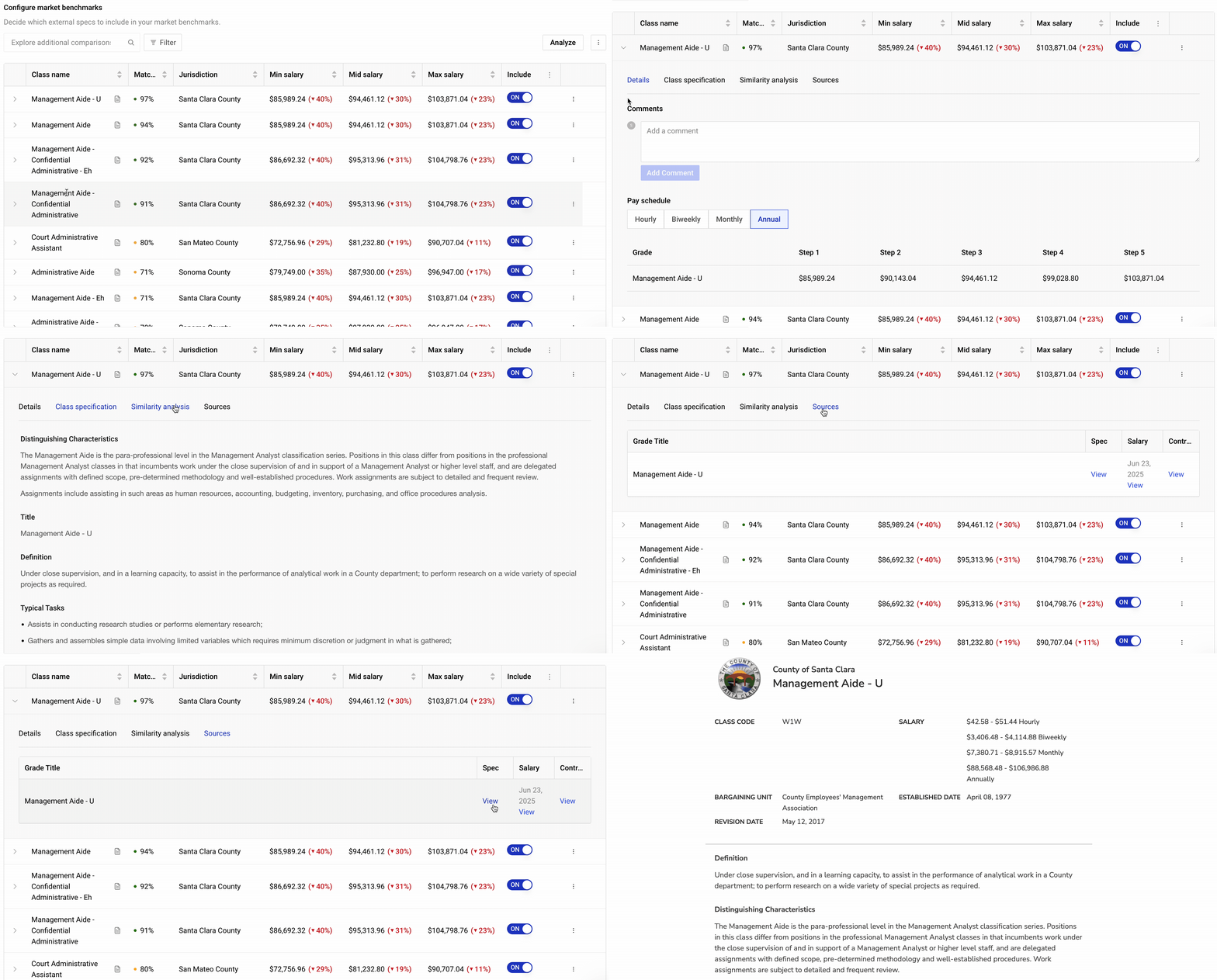
Holly makes it easy to investigate each source to verify information without leaving the platform. When you open a comparator's detail view, here's what each section tells you:
Details — Comments that have been made on the spec, pay grade.
Class Specification — The full job spec as uploaded to Holly: duties, scope, requirements.
Analysis — Holly's explanation of why this role was rated a strong match.
Sources — Where the spec and salary data came from, with direct links to original documents. If the data doesn't match its source, flag it for the Holly team: click the three-dot menu on the right and select the data issue option.
Step 5: Refine your comparator list
With full context in hand, you're ready to decide which comparators belong in your study. This is where your professional judgment shapes the final dataset.
If a comparator's data matches its source and the role is a genuine fit, keep it by toggling it on.
If a comparator is sourced accurately but doesn't fit your study's scope, toggle it off. Toggling off removes the comparator from the market median calculation and from your export.
If you desired to rerun the class specs on the market tab, rest assured that the "toggled on" benchmarks will stay.
Why Validation Matters and Questions to Consider
When you run a Market Analysis on a class spec in Holly, the platform's similarity algorithm does the heavy lifting: scanning job class specifications across jurisdictions and surfacing the comparators most likely to match your target role.
At Holly, we believe in a "trust but verify" approach to ensure you have the means to confirm the best comparator benchmarks for a class spec. A strong study isn't just about what the algorithm finds — it's about what you confirm.
Validating the top comparators in a class spec's Market Analysis means reviewing each comparator with a critical eye:
Does this role actually reflect the work your classification performs? Is the scope of duties comparable?
Lead/supervisory responsibilities: Does the comparator have the same level of supervisory or lead duties?
Agency-wide vs. department-specific: Is the class broadly used across the org, or siloed to one department?
Prior match history: If the class was used in a previous study, use that as a reference point. If a previously-used match doesn't appear in Holly (it's below the default similarity threshold), manually add it and assess why. To manually add a comparator spec, see 📄 Adding and Managing Comparators.
These questions matter because a number is only as meaningful as the role it came from. A well-matched comparator strengthens your study; a misaligned one, even with accurate data, can undermine your conclusions.
Step 6: Export your results for a single class spec
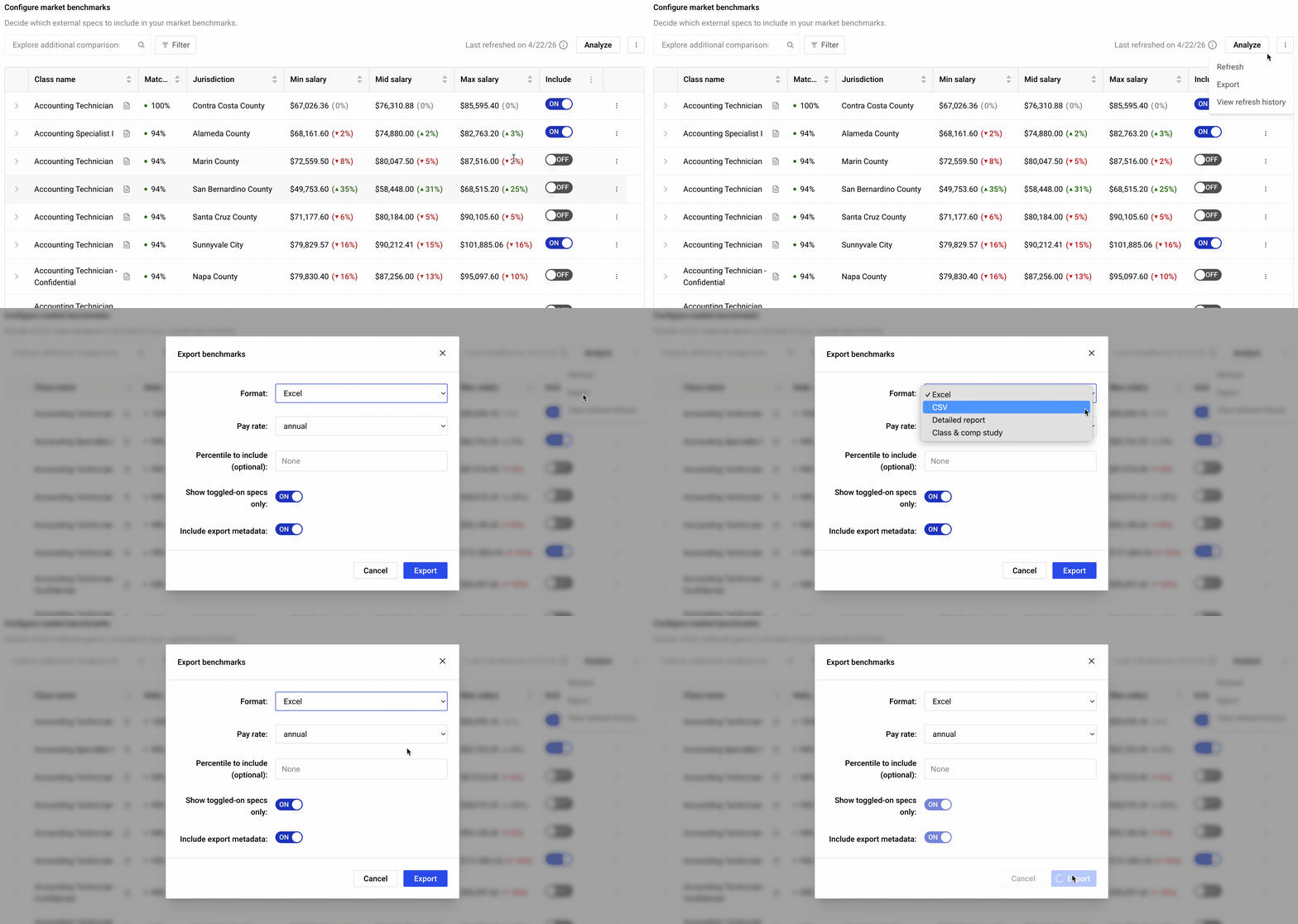
Once you've toggled on the comparators you want, click the three-dot menu at the top right of the tab to export.
You can export as Excel, CSV, or Word (available in two formats). Each export includes:
A pay rate unit selector, so you can choose hourly, monthly, or annual figures depending on how your study needs to present pay. For City of St. Louis, please choose bi-weekly.
For bulk salary reports covering multiple specs, a summary page that aggregates key data across all specs into a single overview.
You can also limit the export to only the comparators you've toggled on, or include all of them if you want to keep every option visible for internal reference.
Step 7: Export your results across class specs
Once you've toggled on the comparators you want for a couple of class specs, you can download a more polished salary study through Holly. For more information see 📄 Salary Survey Bulk Report.
You can download this report by going to the Reports section in the lefthand corner of the Holly platform. Select pick a report and choose salary survey. From here, you can select which class specs you'd like to include in the report. Once loaded, you will be able to download an Excel workbook.
Warning: The report can only compile benchmarks that exist. Specs whose market benchmarks haven't been generated contribute no data to the export. Before running a report you plan to share, confirm the included specs have current benchmarks and review their comparator sets.
Putting Together the Salary Study Deliverable
For a study like the current water positions analysis, plan on two deliverables per priority class:
A per-position benchmark export (Word doc) showing the comparators chosen, their match percentages, and Holly's AI-generated notes on similarities and differences — this is your record of why each comparator made the cut.
An overall salary study report covering all priority positions, built from the Salary Survey Bulk Report once every included spec has current, validated benchmarks.
The goal of this information it's to walk into the stakeholder conversation with a clear, defensible narrative already worked out.
The Result: A Study You Can Stand Behind
A validated Market Analysis isn't just cleaner data — it's a stronger foundation for every decision that follows. Whether you're presenting recommendations to department heads, preparing for labor negotiations, or building the case for a classification study, a well-validated benchmark gives you the evidence base to move forward with authority.