Running Reports for Bulk Analysis
Last updated: July 28, 2026
Run AI-powered compliance and benchmarking analyses across your entire spec catalog at once, instead of reviewing specs one by one.
What are Reports for Bulk Analysis?
Checking a single compliance question, like whether a driver's license requirement makes sense for a role, is manageable one spec at a time. Checking it across a catalog of hundreds of specs isn't. Holly's Reports tool runs these analyses across your whole spec catalog, or a set you choose, in a single pass, so you get a complete picture in minutes instead of working through specs one by one.
Each report type is built around a specific compliance, benchmarking, or hiring question. Some run automatically across every spec in your catalog. Others ask for a supporting document, like a contract or a PDQ response, before they run. Once a report finishes, you can sort, filter, and export the results, and for some report types, act on a flagged spec directly from the results table.
How to Run a Report
How to Run a Report
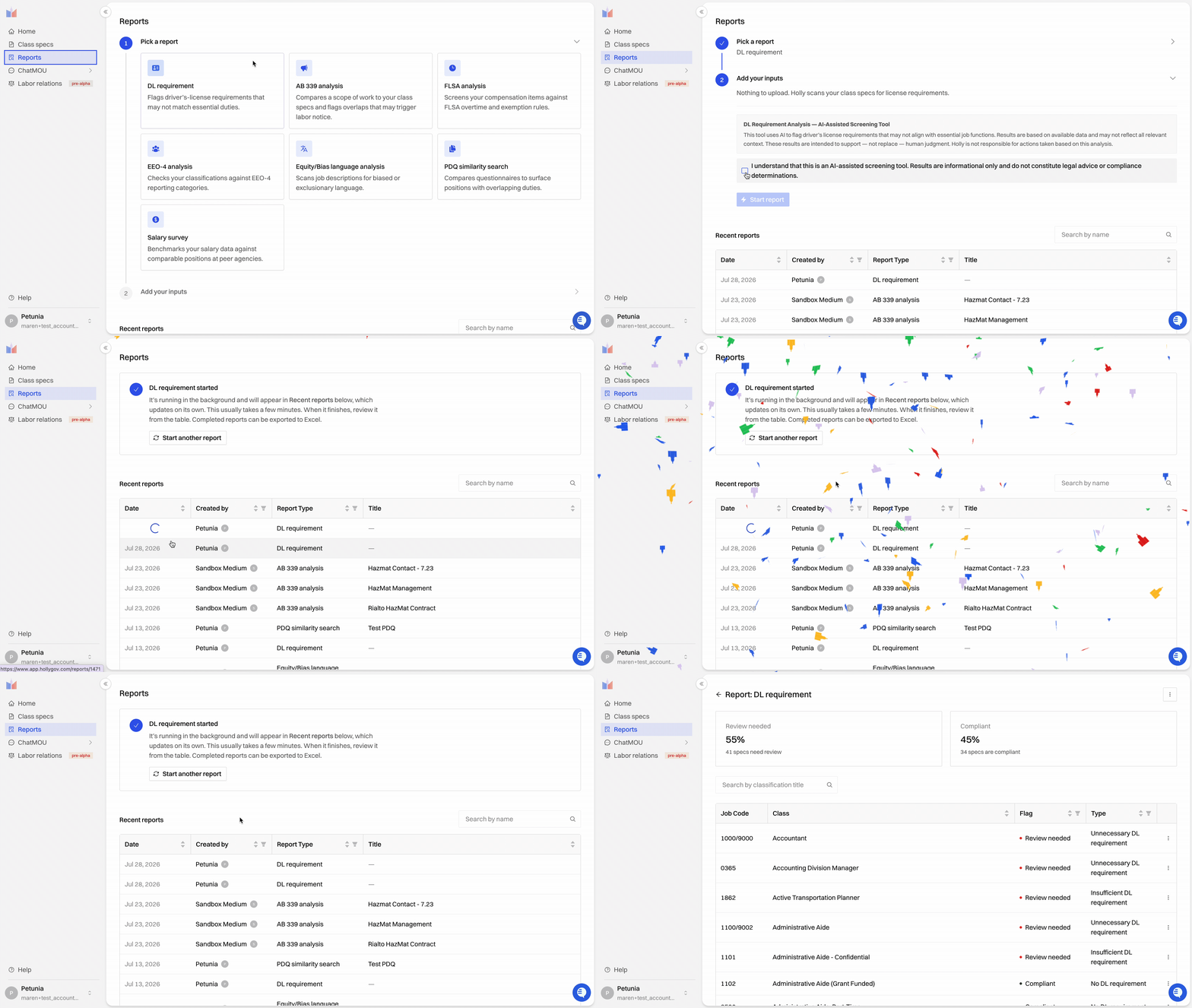
Navigate to Reports from the left-hand navigation.
Under Pick a report, select the report type card you want to run.
Under Add your inputs, provide any additional information the report type needs:
Driver's License, FLSA, EEO-4, and Equity & Bias Language reports run automatically across all specs — no additional input needed.
Salary Survey — Enter a report title and select which specs to include.
PDQ Similarity Search — Enter a report title and paste the PDQ response, or upload it as a PDF, Word, or Excel file.
AB 339 Analysis — Enter a report title and paste the contract text, or upload it as a PDF, Word, or Excel file.
Confirm that you understand that AI is used to generate the report, and click Start report. Holly analyzes the relevant specs and generates your results. Larger spec catalogs may take a few minutes.
You can find all of your previous reports in the Recent reports table below the report-creation steps on the same page.
Understanding Your Results
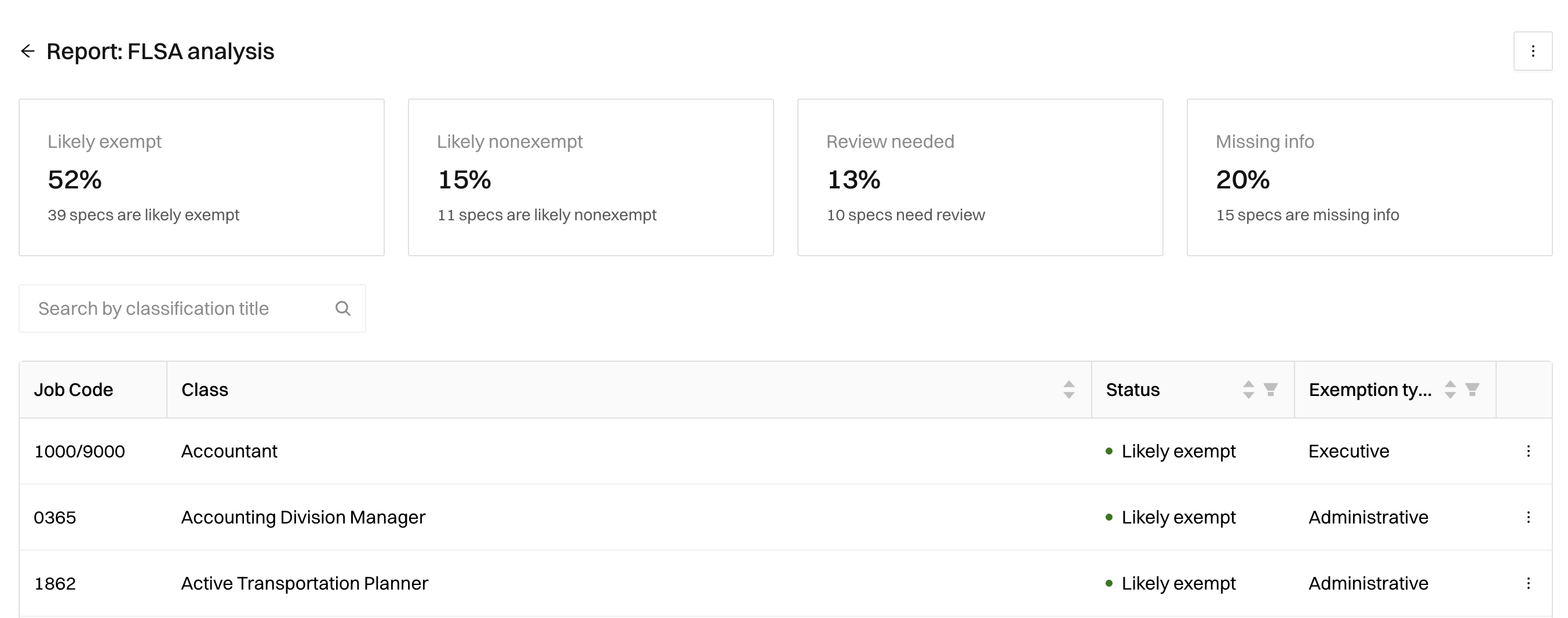
Once a report completes, you'll see a summary stats section at the top and a detailed table below with one row per spec. The exact labels vary by report type. For example, a Driver's License Analysis shows Review needed and Compliant stat cards with the percentage and count of specs in each, followed by a table with Job Code, Class, Flag, and Type columns (for example, "Unnecessary DL requirement" or "Insufficient DL requirement").
Start with the summary stats to get the overall picture, then use the table tools to work through individual results:
Search — Find specific specs by classification title.
Sort — Click a column header to sort by status, flag, or score.
Filter — Narrow results to specific categories. Available filters vary by report type (see below).
Hover for details — Hover over a result to see Holly's AI-generated reasoning.
Export — Download results as an Excel file. Exported files are named by report type, report title, and date, so they stay identifiable outside of Holly.
Finding Past Reports
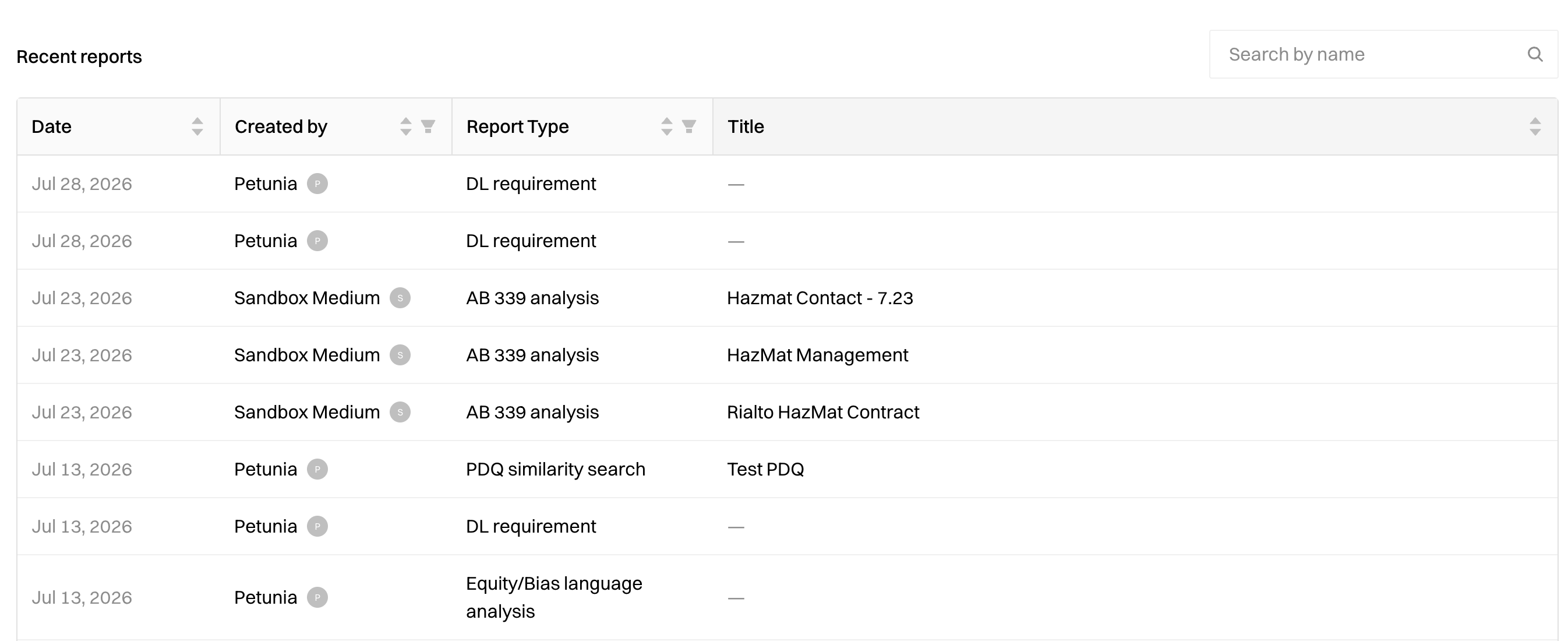
The Reports page keeps a Recent reports table below the report-creation steps, listing every report your organization has run. Each row shows the Date, who the report was Created by, the Report Type, and its Title (reports that don't use a custom title, like automatic scans, show a dash). You can search by name, and sort or filter by creator or report type. Click a row to reopen that report's full results.
Available Report Types
The reports available to you may vary depending on your jurisdiction and configuration.
📄 Driver's License Analysis— Reviews each spec to determine whether a driver's license requirement is appropriate, missing, or unnecessary for the role.
📄 FLSA Analysis— Classifies positions as likely exempt or non-exempt under the Fair Labor Standards Act, and identifies the applicable exemption type (executive, administrative, professional, computer, outside sales, or highly compensated).
📄 EEO-4 Analysis — Categorizes positions into standard EEO-4 job categories and government functions to support federal reporting requirements.
📄 Equity & Bias Language Analysis — Scans spec language for gender bias, other biased language, accessibility concerns, and unfair requirements, and shows the specific language that triggered each flag.
📄 Salary Survey Bulk Report — Compiles benchmark salary data across selected specs, with export options for pay rate unit, percentile, and, for reports covering multiple specs, a summary page.
📄 PDQ Similarity Search — Compares an employee's Position Description Questionnaire (PDQ) response against your spec catalog to find the classifications with the closest match, helping you spot positions that may be working out of class.
📄 AB 339 Contract Overlap Analysis(California jurisdictions only) — Compares your specs against a service contract to identify classifications with overlapping duties, and flags which unions may need 45 days' written notice under California AB 339.
Tips for Getting the Most Out of Reports
Start with the summary stats to understand the overall picture before reviewing individual specs.
Use filters to prioritize — for example, filter an Equity & Bias Language report to "Review Needed" to focus on the specs that need the most attention.
Export your results to share findings with stakeholders or fold into broader HR reporting.
Re-run reports periodically as you update specs, to track progress and catch new issues.