Created a Salary Survey for the City of Milford
Last updated: September 21, 2026
This guide formalizes how the Milford team can review the right benchmarks for a class spec and generate a salary survey report to bring to conversations. Right now, the main focus is on MSA but this guide can be used for other bargaining groups.
What is the Workflow?
For general background on Holly's Market and Reports tools, see How to Conduct a Salary Survey.
As a reminder, this workflow is Holly's built-in way of comparing Milford's own class specifications against similar classifications at other jurisdictions. Instead of manually researching comparator salaries jurisdiction by jurisdiction, you can:
Let Holly surface a likely market match for each comparator jurisdiction automatically
Include or exclude specific comparators, or manually add a better match when Holly's top pick isn't right
Keep those selections synced automatically as new salary data comes in
Generate a single salary survey report covering multiple specs at once, or export a detailed comp study for just one classification
Once your comparators are set for a spec, you can generate a report showing exactly where Milford sits against the market — by minimum, median, and maximum.
Process for the City of Milford (MSA Specs)
The process below covers the four specs Tania has already started: Animal Control Officer, Assessor (Exempt), Assistant Library Director, and Building Maintenance Superintendent.
Step 1: Find the MSA specs
Open the class specs list and scan the bargaining unit column to identify the specs that belong to the MSA bargaining unit.
Note: filtering the list directly by bargaining unit isn't available yet — it's in development!
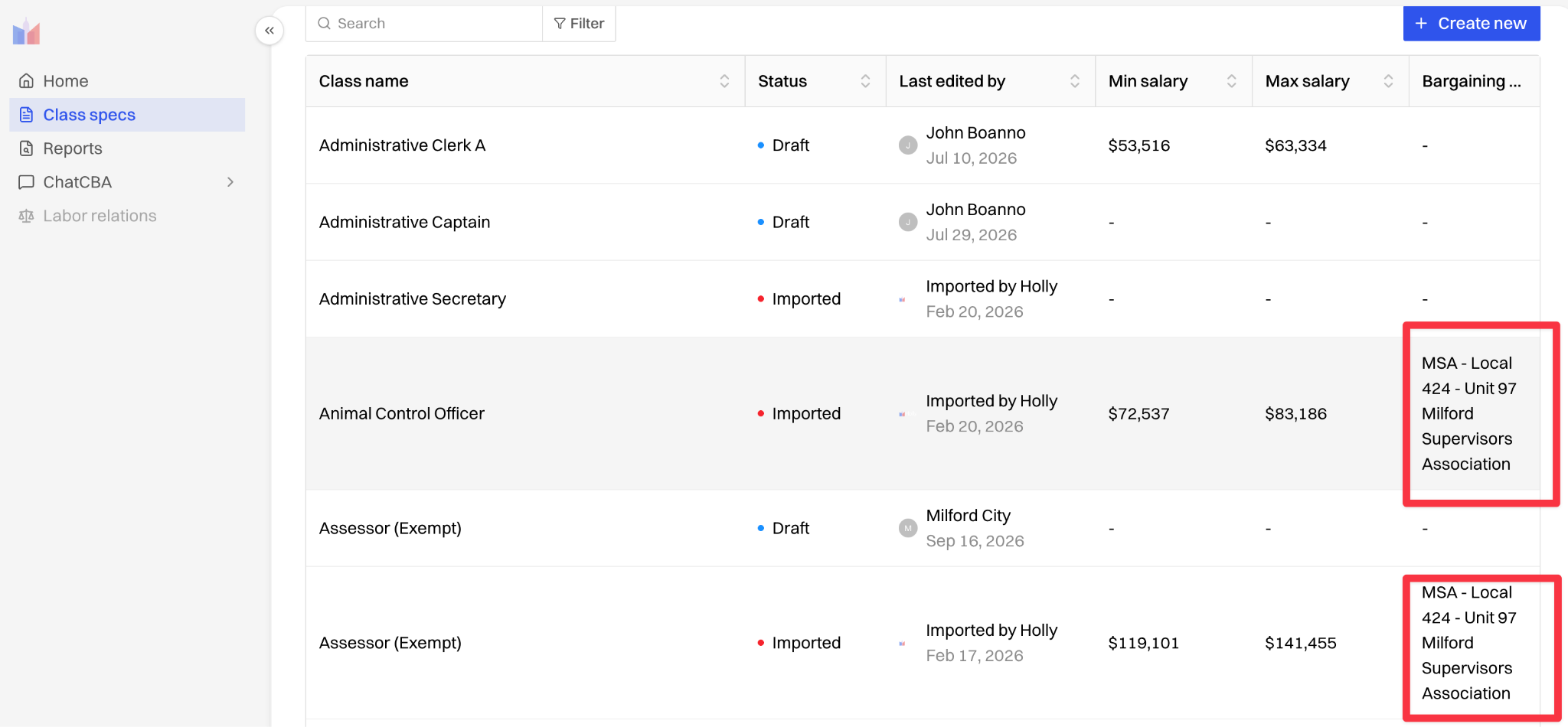
Step 2: Build Market Comparators for Each Spec
Primary Group: the default set of comparator jurisdictions Holly filters a spec's market matches to.
Top Match: the highest-confidence jurisdiction match Holly identifies for a given classification.
Click into the class spec.
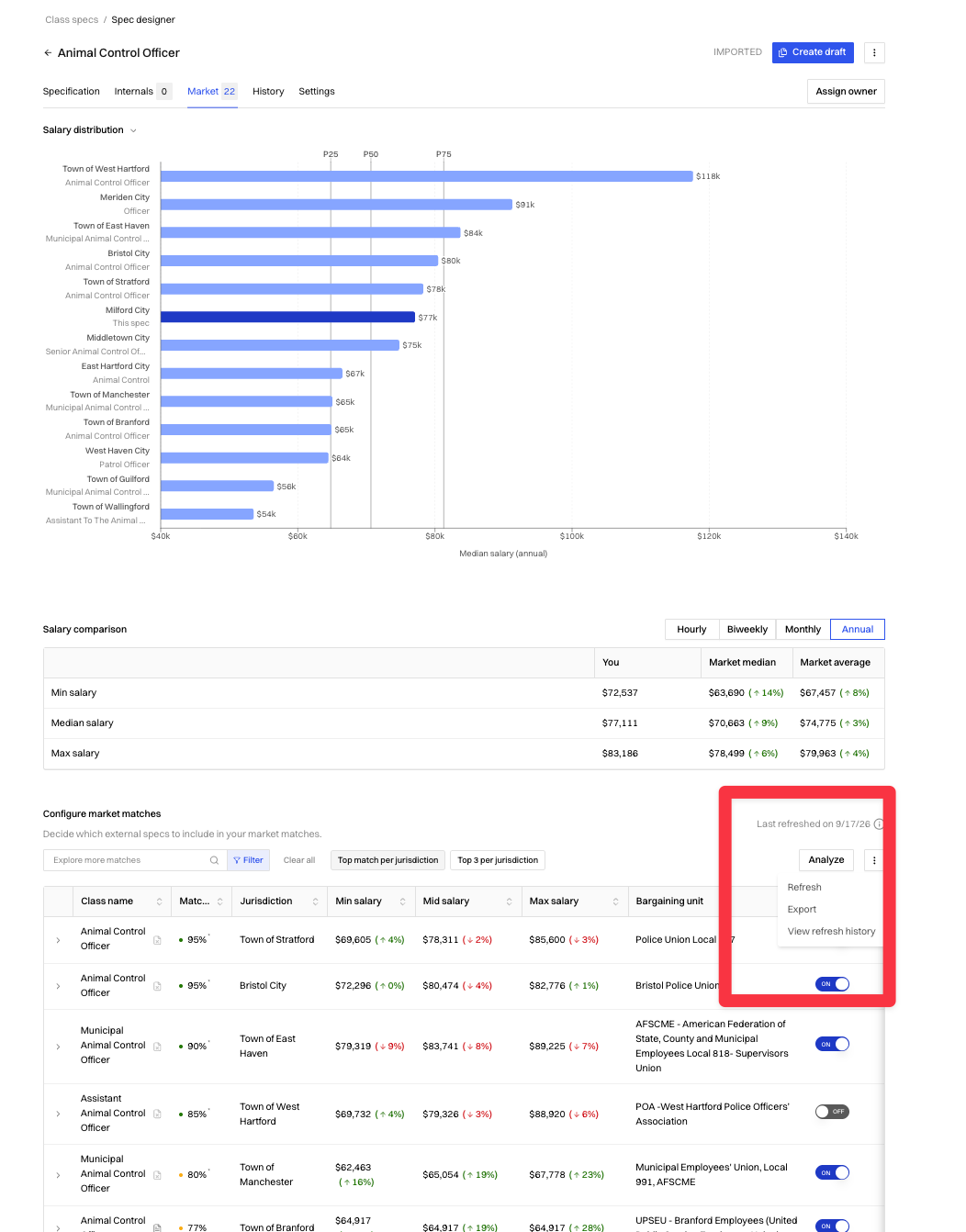
Go to the Market tab and scroll to the bottom table.
Filter to the Primary group.
Click the arrows next to the "Jurisdiction" column to sort by jurisdiction. You can see all the top comparators for each jurisdiction, and then use the include / exclude toggle on the right to remove matches that don't fit.
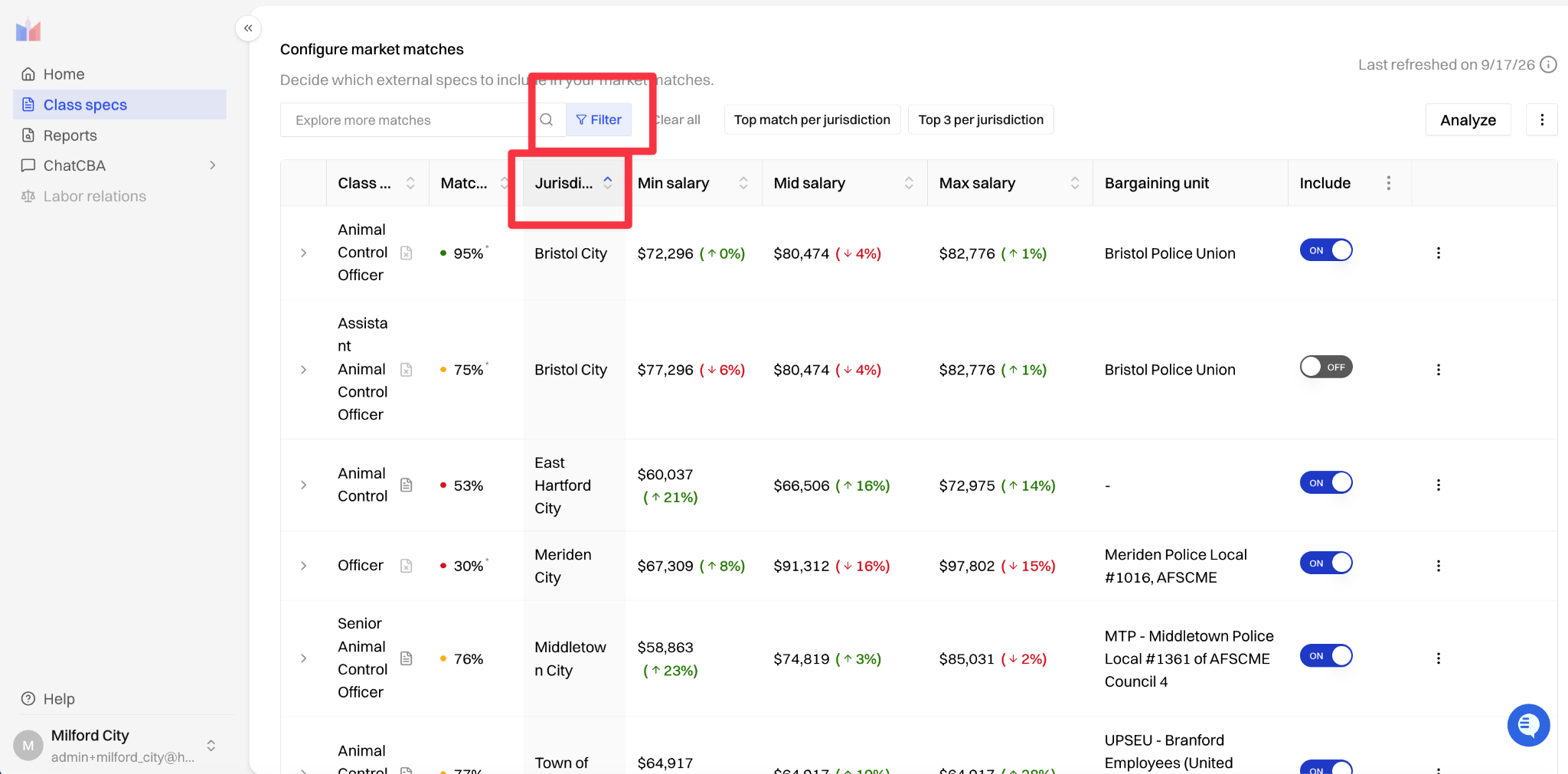
Note: selections save automatically and will update on their own as new salary data comes in — no need to redo this step later.
Step 3: Generate the Salary Survey Report
Once you have a few class specs and want to download a report analyzing all of them, follow these instructions.
Go to the Reports tab in the left hand side of the screen.
Click Salary Survey.
Title the report (e.g., "MSA 2026”).
Select the specs to evaluate.
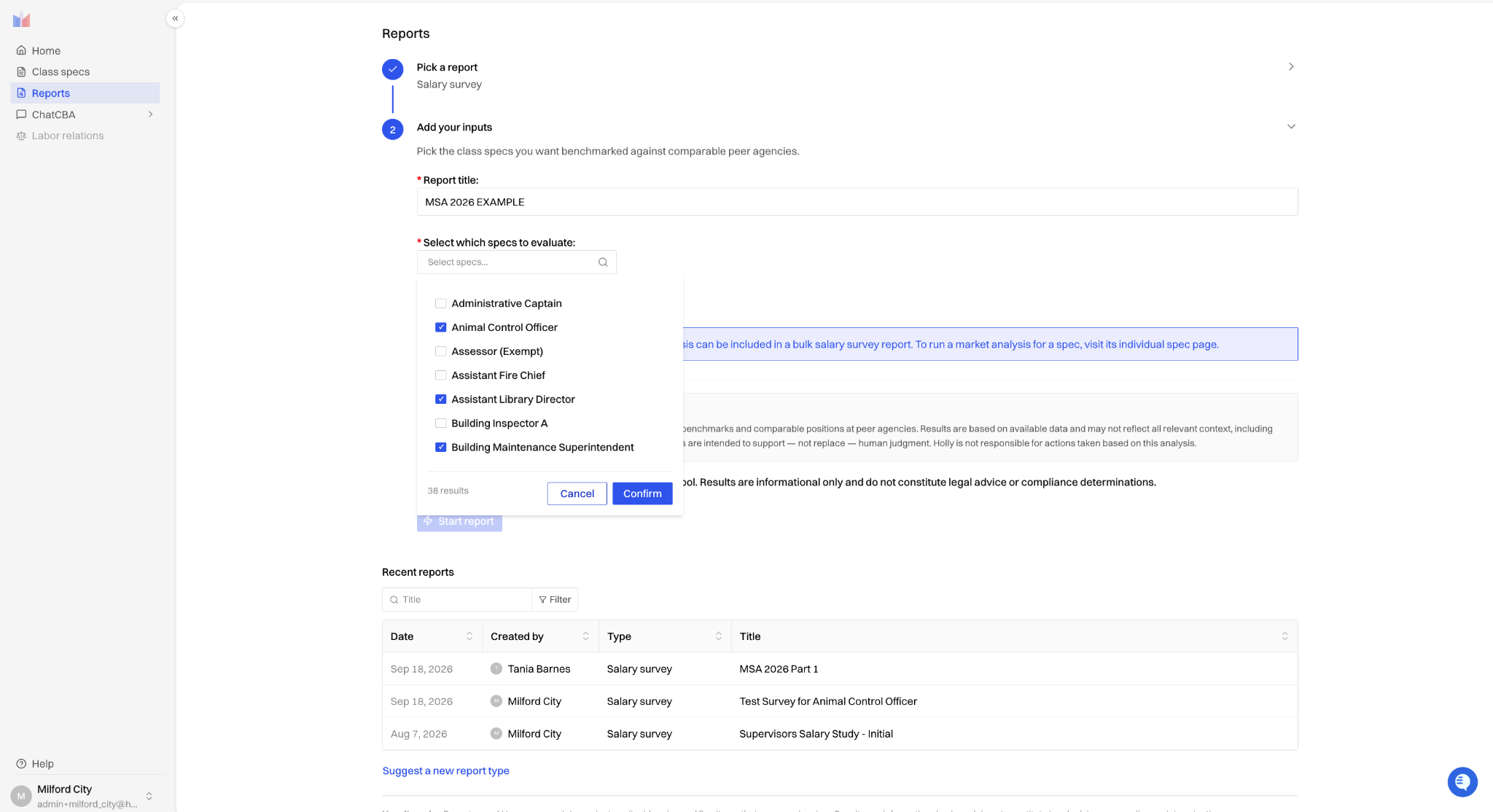
Click Start Report.
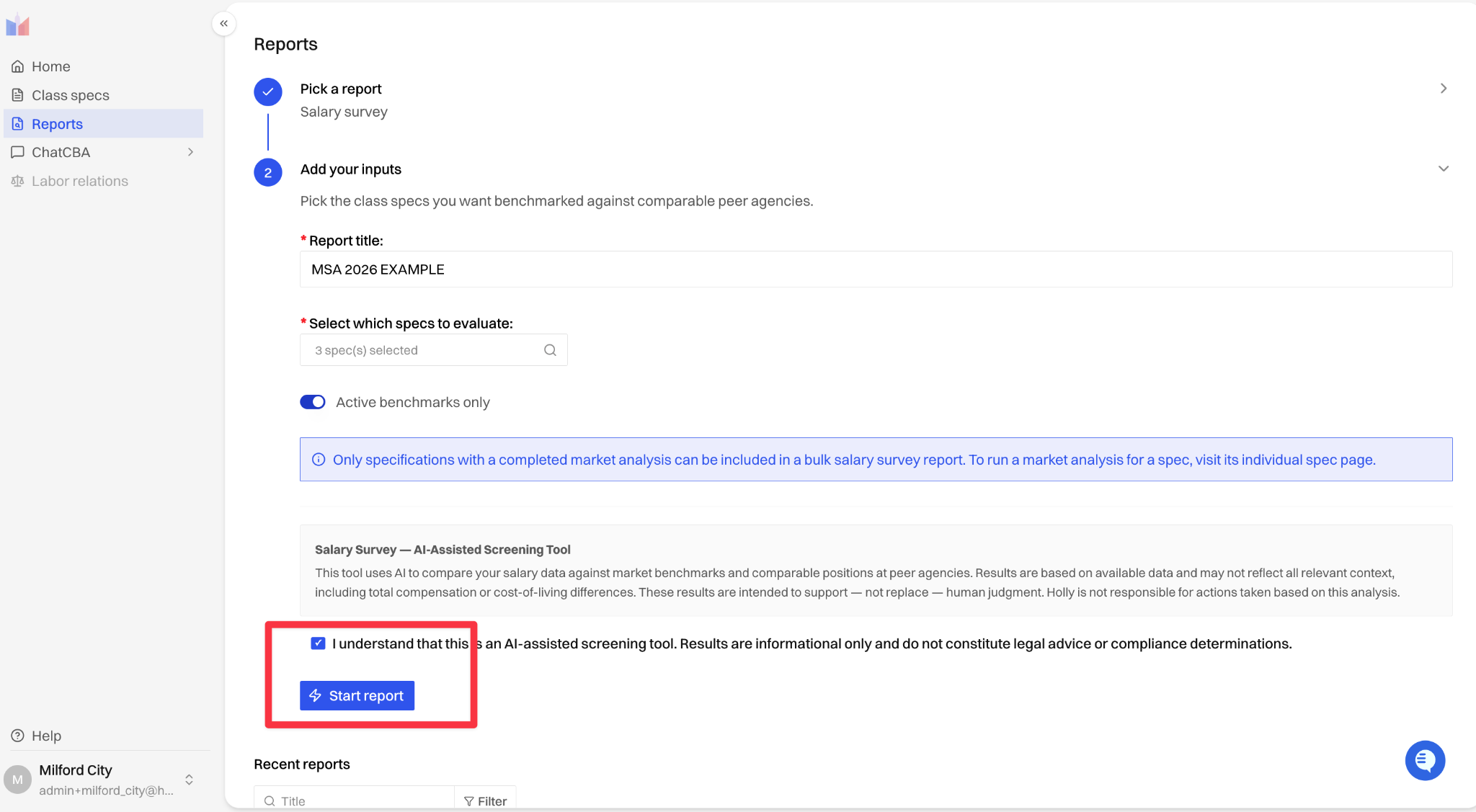
Note: the report is saved permanently once generated — it won't be deleted. The exported Excel includes a SUMMARY tab (each class title with Milford's base salary, market median, and percentage difference) plus a separate tab per spec with full comparator detail.
Step 4: Export an individual Class & Comp Study (as needed)
Holly makes it easy to also perform a deep dive on one classification — e.g., one of the specs flagged as a candidate for a salary adjustment — rather than the full survey:
Open the spec.
Go to the Market tab.
Click the three-dot menu next to “Analyze”.
Select Export → Class & Comp Study.
This produces a detailed Word document for that single spec. For the broader MSA study across multiple classifications, the salary survey report from Step 3 remains the right tool.
Order of Milford's MSA Workflow
Below is the full workflow, start to finish. It can always be revisited — comparator selections and report specs aren't locked in until a report is generated.
Stage 1: Identify Specs Scan the bargaining unit column for MSA specs. (Direct filtering by bargaining unit is in development.)
Stage 2: Build Comparators Market tab → filter to primary group → toggle top matches → include/exclude or manually add as needed. Selections sync automatically going forward.
Stage 3: Generate the Report for Multiple Specs Reports tab → Salary Survey → title the report → select specs → Start Report. The report is saved permanently; specs can't be added to it later without starting a new one.
Stage 4 (as needed): Individual Class Spec Deep Dive Select Spec → Market Tab → Three-dot menu → Export → Class & Comp Study, for a single classification requiring closer review.
Run Stage 4 for as many specs as needed; it does not replace Stage 3 for the broader MSA study.
The Result: A Salary Survey You Can Stand Behind
A validated MSA salary survey isn't just cleaner data — it's a stronger foundation for every decision that follows. Whether your team is presenting Milford's market position to department heads, preparing for the October cost-analysis conversation with Holly, or building the case for one of the classifications flagged for a salary adjustment, a fully validated set of comparators gives you the evidence base to move forward with authority.