How to view Additional Compensation Data from the Market Tab
Last updated: November 12, 2026
Go beyond base salary. Review MOUs, side letters, and benefit summaries, and export a side-by-side comparison of specialty pays and benefits for your benchmark matches.
Availability: Additional compensation features are currently available to select customers. If you don't see them in your account and would like access, contact your Holly representative or email support@hollygov.com.
What is Additional Compensation on the Market tab?
Base salary is only part of the story. Two jurisdictions can pay the same base salary for a classification but offer very different bilingual premiums, retirement tiers, or health benefits. A full market picture used to mean digging through each comparator's MOUs and side letters by hand.
The Market tab already helps you find comparable classifications and benchmark base salary. Additional compensation features build on that. Once you've chosen your market matches, you can open the bargaining documents behind each match. You can also export a spreadsheet that compares specialty pays and benefits across every jurisdiction in your study.
Common Use Cases
Comparing bilingual pay across your comparators
Your union has asked whether your bilingual premium is competitive. The export's Premium/Special Pays tab lists each jurisdiction's bilingual pay next to the others. For example, Riverside County pays $0.50 per hour for Level 1 bilingual pay across all specs in the unit, while Ventura County pays $0.69 per hour. You can quickly see where your agency falls on that range.
Preparing for bargaining
Before negotiations, you need more than salary ranges. The export's summary pulls together contract dates, base pay increases, and links to each comparator's MOU. You can build your talking points from one file instead of a dozen PDFs.
Checking the exact contract language
A comparator's benefit looks unusually generous, and you want to confirm the details. Open that match's additional comp documents to read the MOU, side letters, or benefit summary text yourself.
How to Set Up Your Market Matches
Additional compensation information is tied to the specifications you match to, so start by confirming your matches.
Open the class spec you're benchmarking and go to the Market tab.
Scroll to the Configure Market Matches section.
Review the suggested matches using the match percentage, class name, and match breakdown.
Keep the specifications that are the right fit for your benchmarking study.
For more details on how to do this, refer to 📄 How to Add and Manage Comparator Specs → How to Toggle Comparators On and Off (Market Tab Only)
How to View Additional Comp Documents for a Match
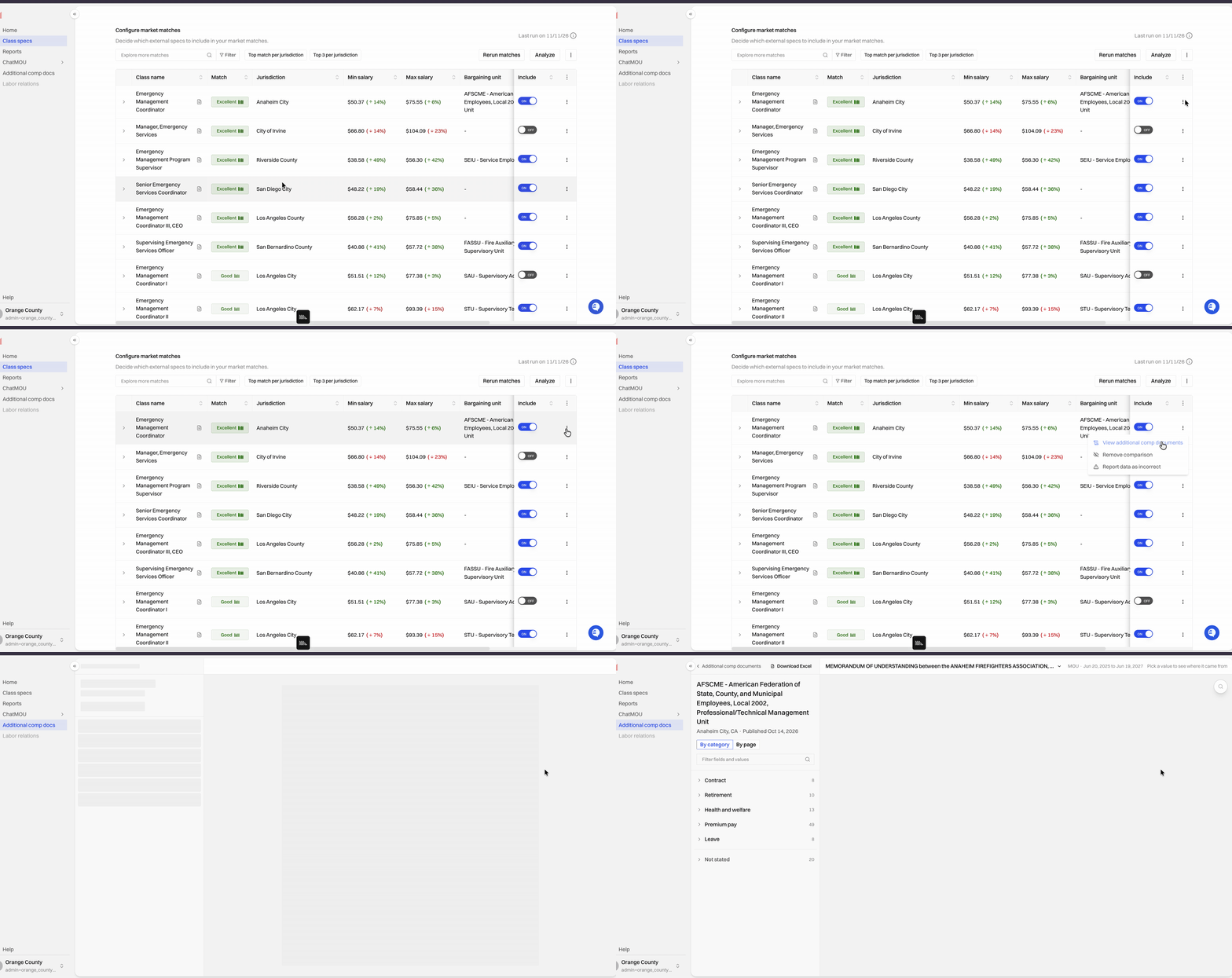
Use this when you want to dig into one comparator's benefits or read the exact language in their bargaining agreement.
In the Configure Market Matches section, find the match you want to review.
Click the ⋯ (three dots) menu on the right side of that row.
Click View Additional Comp Documents.
On the Additional Comp Documents page, review the MOU, side letters, and benefit summary for that specification.
How to Export Additional Compensation
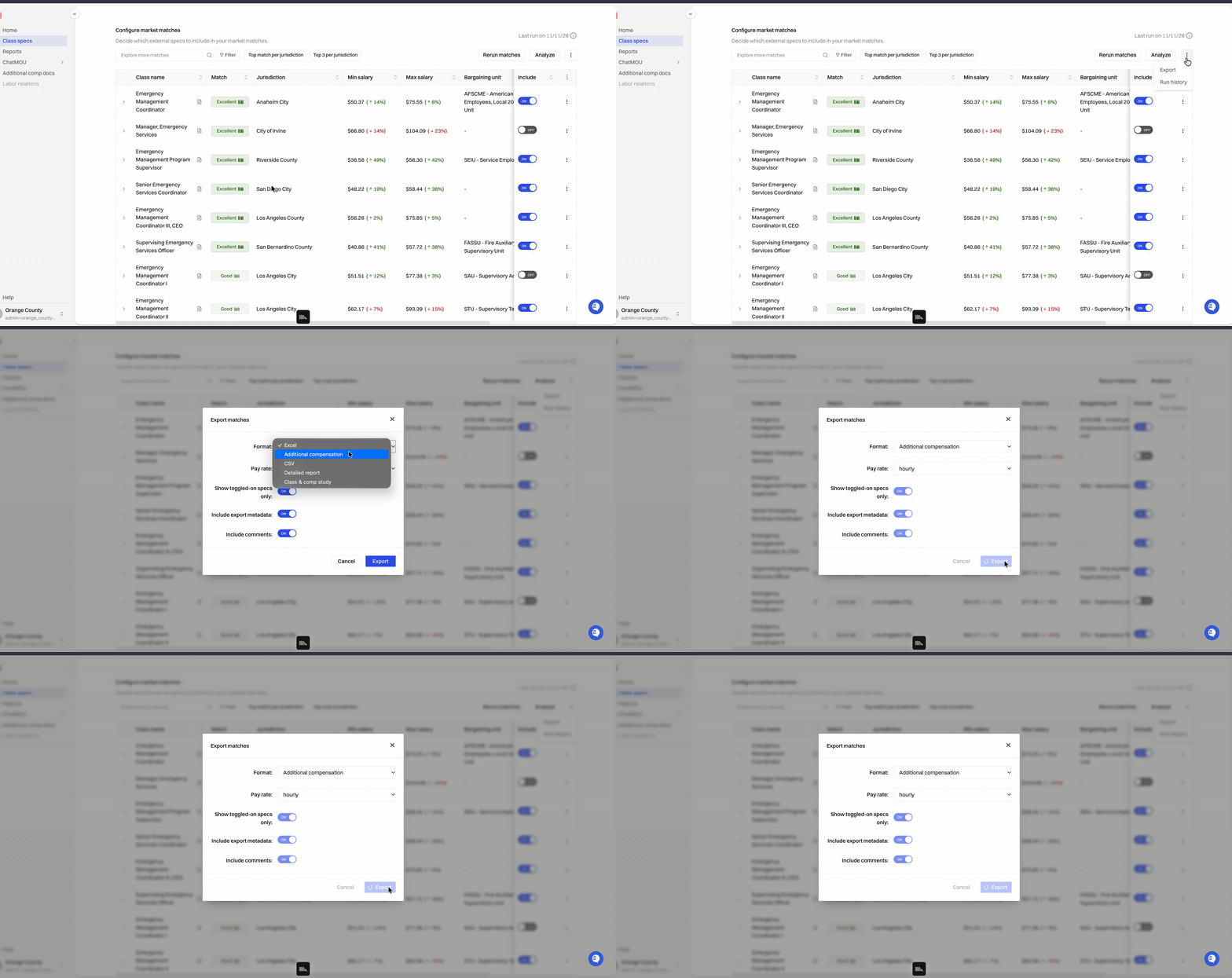
Use the export to compare additional compensation across all of your matches at once.
On the Market tab, click the ⋯ (three dots) menu.
Click Export.
Click Additional Compensation.
Open the downloaded spreadsheet.
Understanding the Export
The spreadsheet has several tabs, each with a different level of detail.
Summary
The summary has one row per matched classification and includes:
Jurisdiction and class title
Bargaining unit that the class belongs to
Match and base salary information from your benchmarking study
Contract dates for the governing agreement
Base pay increases in the agreement
Source links to the MOU, the class spec, and the additional compensation documents
Premium/Special Pays
This tab lists specialty and premium pays, such as bilingual pay, for every jurisdiction in the report. You can sort it by jurisdiction or by pay type. This lets you compare one pay across your comparators, or see everything a single jurisdiction offers. It shows where your benchmark falls on the range of specialty pays.
Additional compensation detail tabs
The remaining tabs hold the detailed benefits for each specification in the summary, with one tab per specification. They cover items such as pension tiers, retirement benefits, and health care.
If you want to… | Go to |
|---|---|
See every comparator at a glance | Summary tab |
Compare one specialty pay across jurisdictions | Premium/Special Pays tab |
Review pension, retirement, or health benefits for one spec | That spec's detail tab |
Read the exact contract language | Click on the Additional Comp Documents in the summary |
What's Coming Next
We're actively expanding these additional compensation features in the coming weeks Planned additions include:
More summary columns in Excel exports, such as specific specialty pays, health insurance, and deferred compensation, so you can compare them at a glance without leaving the summary.
An Additional Compensation tab in Holly, so you can view additional compensation data in the platform as well as in the export.
If you're using these features, we'd love your feedback. Email support@hollygov.com.
Related Articles:
📄 How to Add and Manage Comparator Specs: How to review match percentages and choose comparable classifications for a benchmarking study
📄 Exporting Data from the Internals and Market Tabs: An overview of the exports available from the Market tab
📄 How to See Citations and Sources for Additional Compensation Data
📄 Understanding Holly's Similarity Matches (Similarity Matching 2.0): What the match percentage and match breakdown tell you about a comparable classification