How to Run an Analysis on a Class Specification
Last updated: November 18, 2026
Run AI-powered compliance and classification analyses on any individual spec, right from the spec itself.
Reviewing a single class specification for compliance issues, classification accuracy, or hiring readiness usually means reading the full document line by line with the relevant legal standard open in another window. Holly's analysis tools do that first pass for you. From any spec, you can run a targeted analysis that reviews the document against a specific framework, such as FLSA exemption criteria or ADA compliance standards, and returns findings you can act on.
Each analysis runs on demand and takes only a few moments, so you can check a spec whenever a question comes up: during a classification study, ahead of a recruitment, or in response to an employee inquiry.
Looking to analyze your entire spec catalog at once? Use 📄 Running Reports for Bulk Analysisinstead. This article covers analyses on individual specifications.
How to Run an Analysis
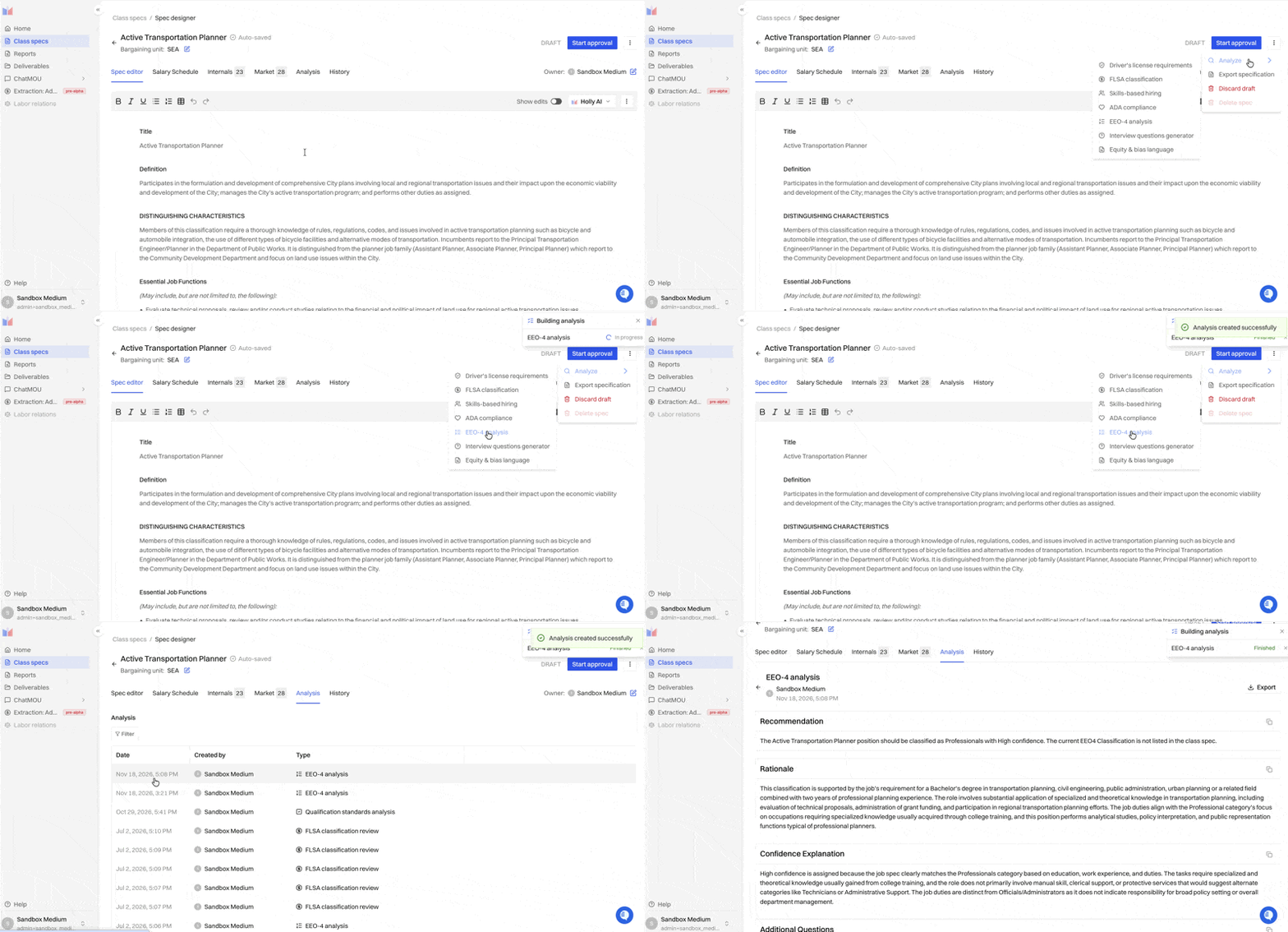
Navigate to the Class Specs tab and open the specification you want to analyze.
On a published or imported spec, click Analyze. On a draft, open the spec page's three-dot menu instead.
Select the analysis type you want to run from the menu.
The analysis shows as in progress on the spec's Analysis tab. When it's done, click it to open the results there.
You can't run analyses while a spec is In Review.
To run a Qualification Standards Analysis, use the Analyze button on the Market tab instead, next to Rerun matches. It runs on the comparators you've toggled on.
Working with Your Results
Analysis results open in the spec's Analysis tab, organized into sections. Each section covers a different aspect of the analysis.
Copying a Section
Each section includes a Copy button , so you can quickly copy a specific part of the analysis into an email, document, or internal note.

Exporting Your Results
For some analyses, you can export the results as a Word document (.docx). Click Export to download them.
Finding Past Analyses
Every analysis you run is saved on the spec's Analysis tab, next to History. The tab lists each run with its date, who ran it, and the analysis type. Use Filter to narrow the list, and click any row to reopen the results.
Available Analysis Types
Each analysis type has its own article explaining what the results mean and how to work with them.
📄 Driver's License Analysis— Evaluates whether the spec's driver's license requirement matches the actual job duties, flagging requirements that are unnecessary, missing, or unclear.
📄 FLSA Analysis — Evaluates whether the position should be classified as exempt or non-exempt under the Fair Labor Standards Act, applying both federal criteria and your state's thresholds where applicable.
📄 Skills-Based Hiring Assessment— Extracts and categorizes the hard and soft skills the position requires, based on the spec's duties, qualifications, and requirements.
📄 ADA Analysis — Reviews the spec for ADA compliance considerations, including whether essential functions are clearly identified and physical requirements are job-related.
📄 EEO-4 Analysis— Determines the appropriate EEO-4 job category for the classification to support accurate Component 1 filing.
📄 Interview Questions Analysis— Produces tailored behavioral and situational interview questions based on the spec's duties, qualifications, and competencies.
📄 Equity & Bias Language Analysis — Scans the spec for gender-specific terms, biased or exclusionary language, accessibility concerns, and unfair requirements.
Note: Your agency's configuration determines which analysis types appear in your Analyze menu, so you may not see every type listed here. If you have questions about which analyses are included for your agency, contact Holly Support at support@hollygov.com.
Holly's analysis tools are actively evolving. If there's an analysis type you'd like to see, let us know at support@hollygov.com.