Filtering in Holly
Last updated: November 18, 2026
Filters work the same way everywhere in Holly, so once you've used them on one page, you know how to use them on all of them.
One Way to Filter, Everywhere
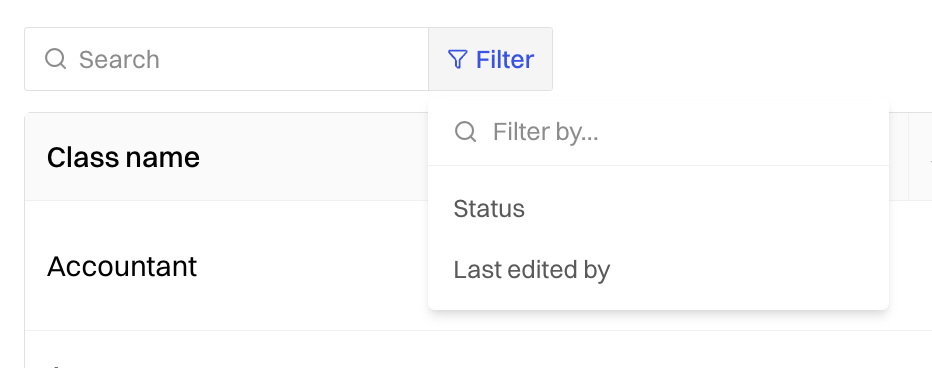
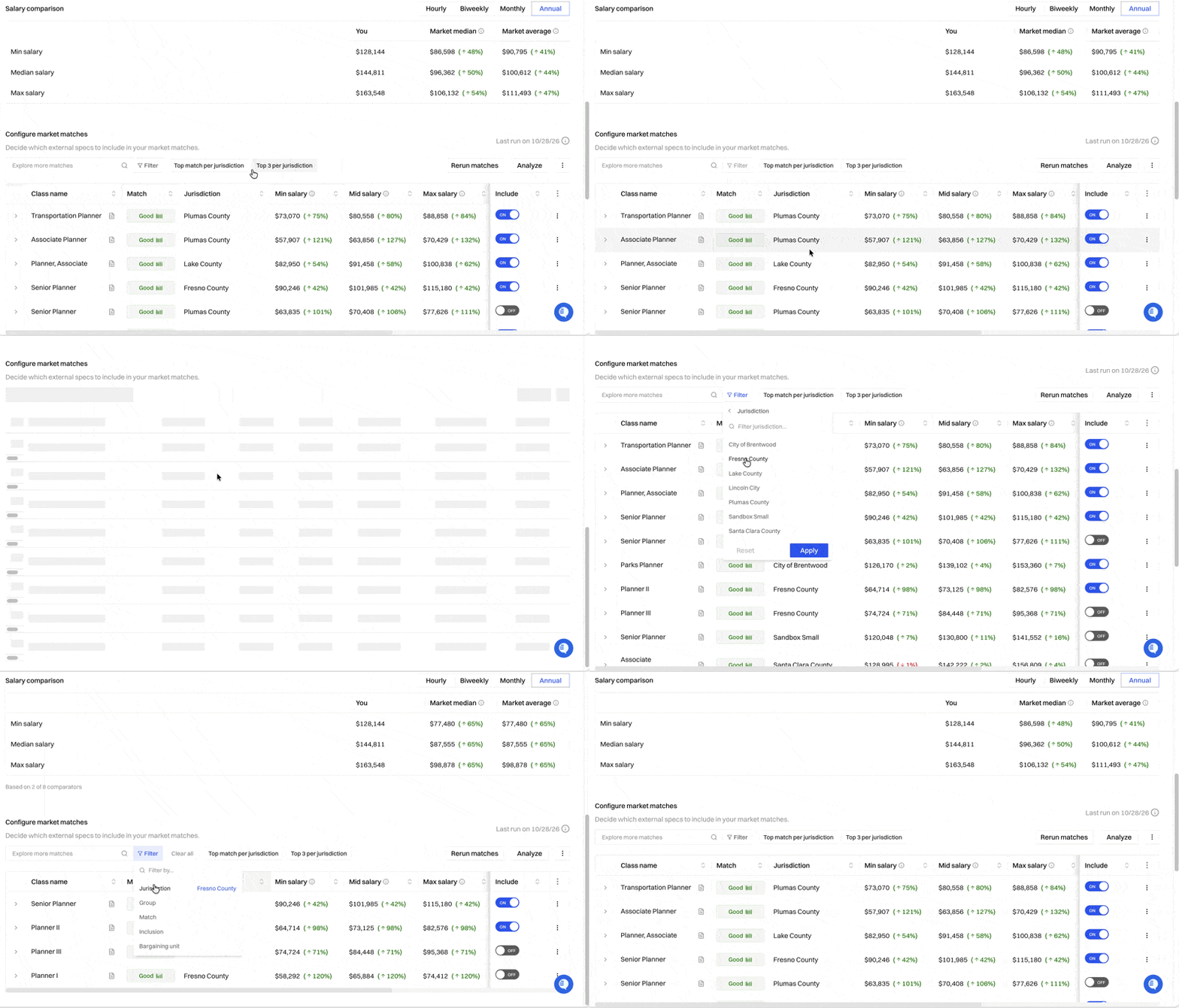
You'll find the same filter tools on the Class Specs page, the Market and Internals tabs, and the Reports tab. Each page has a Search box and a Filter button above the table, and they look and work the same way on every page. The filter options change to match what's on the page. For example, on the Class Specs page you can filter by Status or Last edited by, and on the Market tab you can filter by Jurisdiction.
How to Filter
Click Filter above the table.
Choose what you want to filter by from the list, or type in the Filter by… box to find it.
Check the values you want to see. To find a value quickly, type in the search box at the top of the list.
Click Apply. The table updates to show only matching rows.
You don't need to know which filter holds what you're looking for. Type in the Filter by… box and Holly searches across all of the page's filters at once.
Clearing Filters
To remove all filters: Click Clear all, next to the Filter button. The full table comes back.
To change your selections before applying them: Click Reset in the filter menu to uncheck everything you've selected.
Related Articles
📄 Searching for Specifications in Holly: Find specs by name, keyword, and more
📄 Navigating the Class Specs Dashboard: A tour of the Class Specs page
📄 How Benchmarking Works in Holly: The Internals and Market tabs