Understanding the Class Spec Lifecycle
Last updated: November 18, 2026
Every class spec in Holly has a status that tells you where it is in its life, and what you can do with it right now. This article walks through each status and how a spec moves from one to the next.
The Spec Lifecycle at a Glance
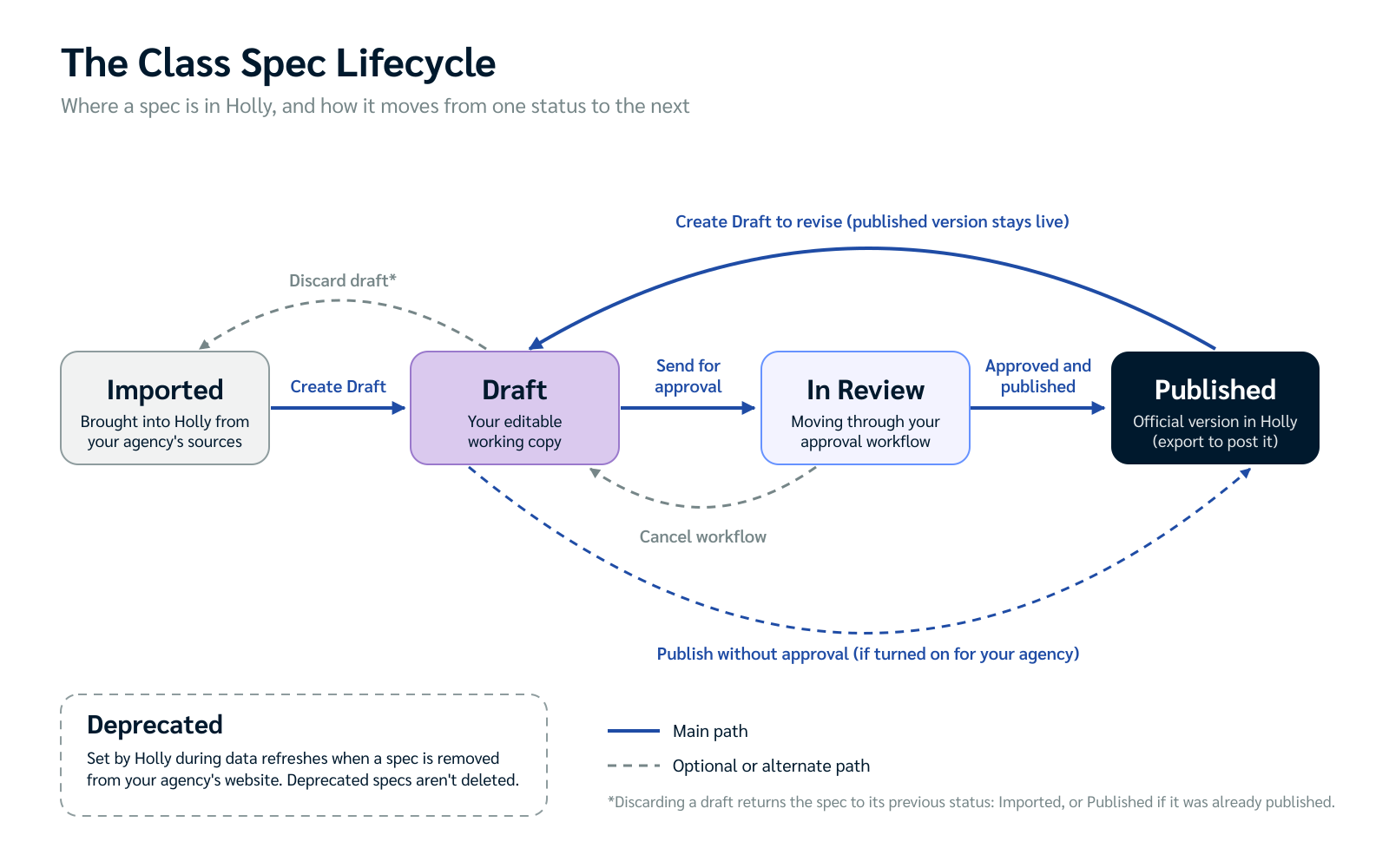
Most specs follow the same path: Holly imports your existing spec, you create a draft to revise it, the draft goes in review through your approval workflow, and the approved version is published. When the spec needs another update, you start a new draft and the cycle repeats.
Each Status Explained
Imported
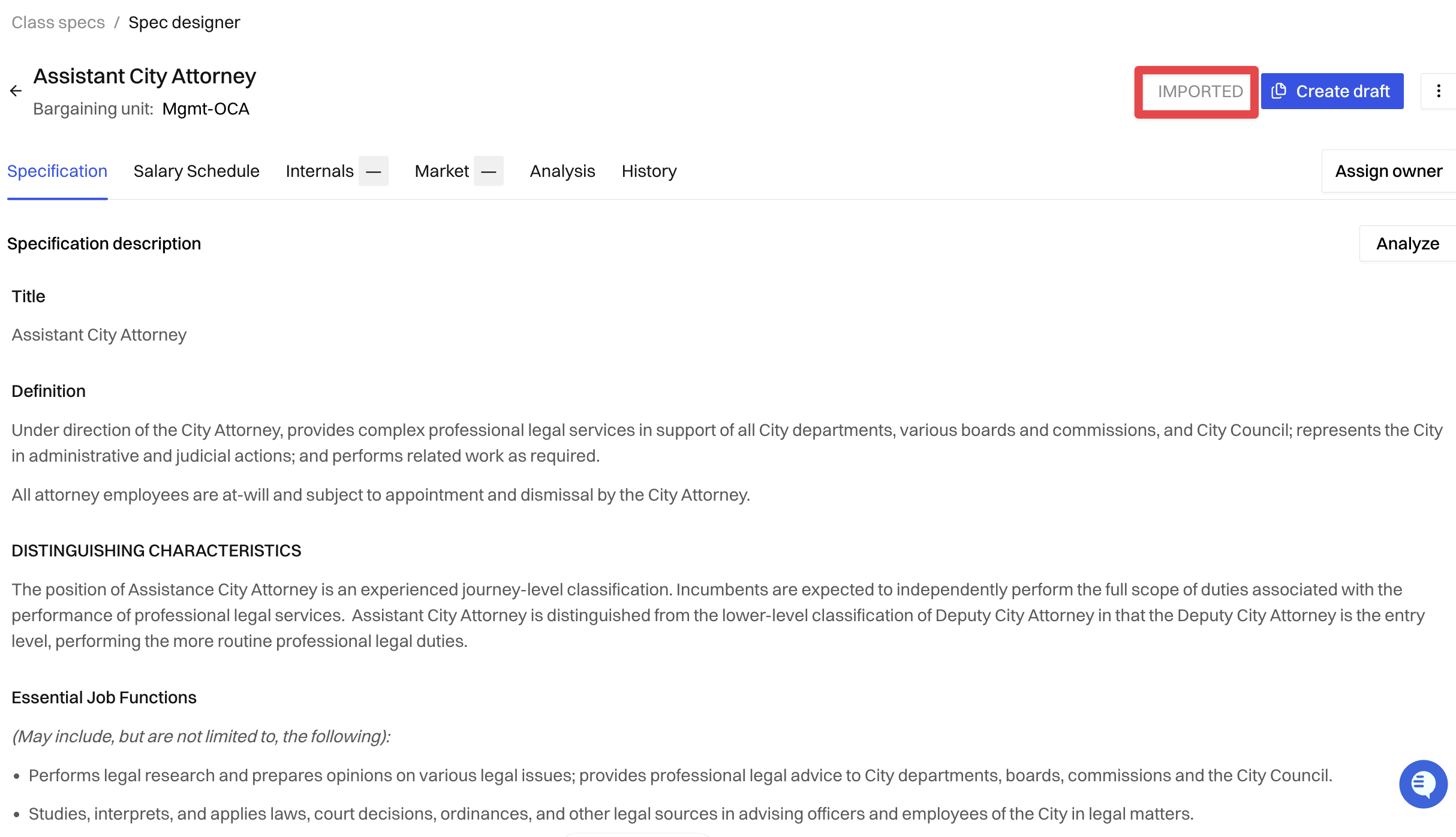
An imported spec is one Holly brought in from your agency's existing sources, such as your website or job board. Holly keeps imported specs current through regular data refreshes, so you don't have to upload them yourself.
What you can do: View the spec, run analyses, see benchmarking on the Internals and Market tabs, and create a draft.
What you can't do: Edit it directly.
To edit it: Click Create Draft.
Draft
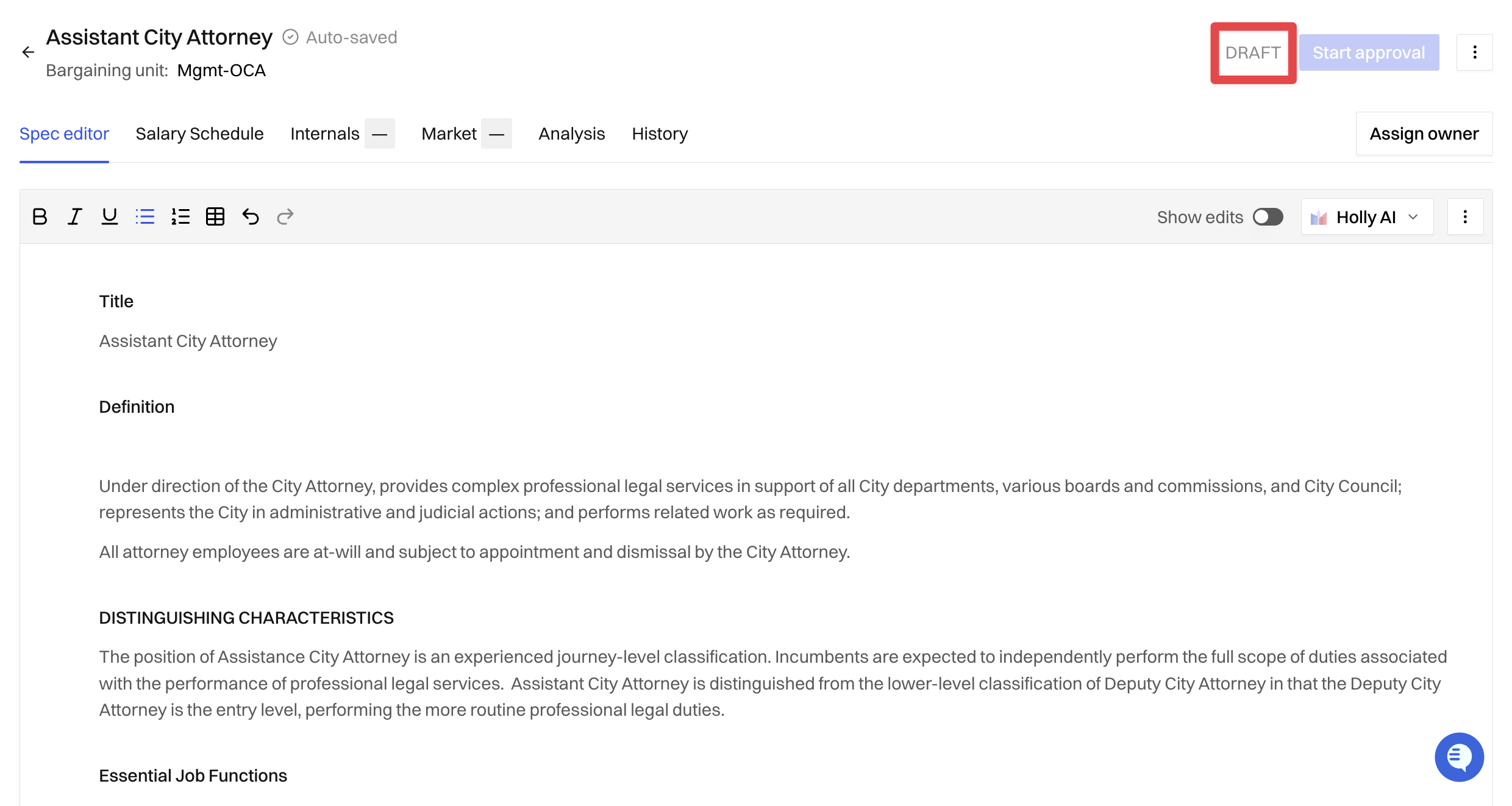
A draft is your working copy. This is where you make changes, either by editing manually or with Holly AI. If the spec was already published, the published version stays live and unchanged until you publish your draft.
What you can do: Edit text, use Holly AI, review changes with Show edits, and see the spec's Versions and Prompt History. You can also assign an owner if the spec does not have one.
To move it forward: Click Send for approval to start your approval workflow. If your agency has it turned on, you can choose Publish without approval instead.
To start over: Click Discard draft from the three-dot menu at the top right. The spec returns to its previous status, Imported or Published, and your draft changes are removed.
In Review
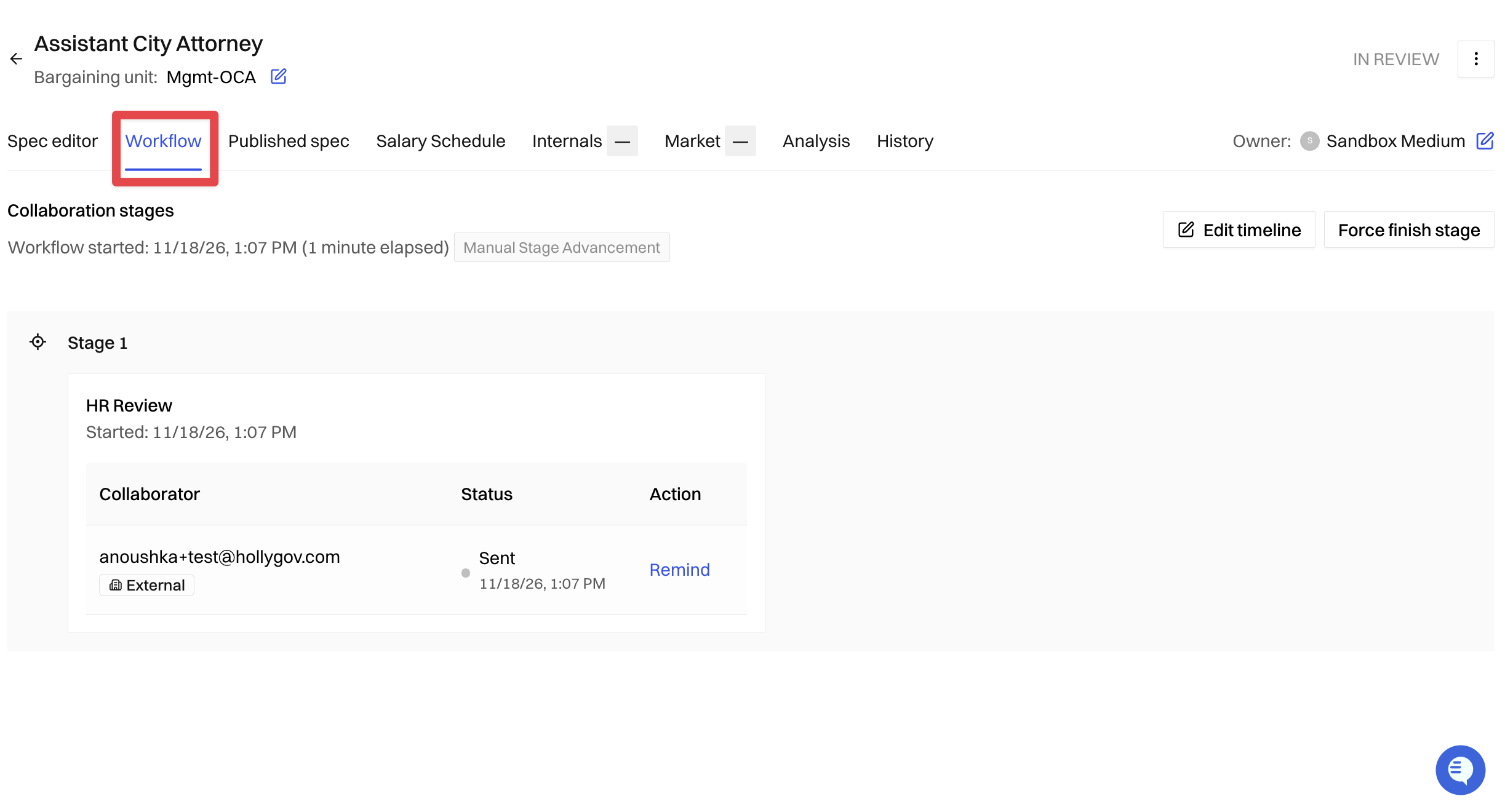
A spec is in review while it moves through your agency's approval workflow. Reviewers can read it, leave comments, and suggest edits, depending on how each step is set up.
What you can do: Track progress on the Workflow tab, send reminders, and read reviewer feedback. The current published version, if there is one, stays visible on the Published spec tab.
To move it forward: Once every step is complete, publish the spec.
To go back: Cancel the workflow to return the spec to Draft using the Revert to Draft option in the top right three-dot menu.
Published
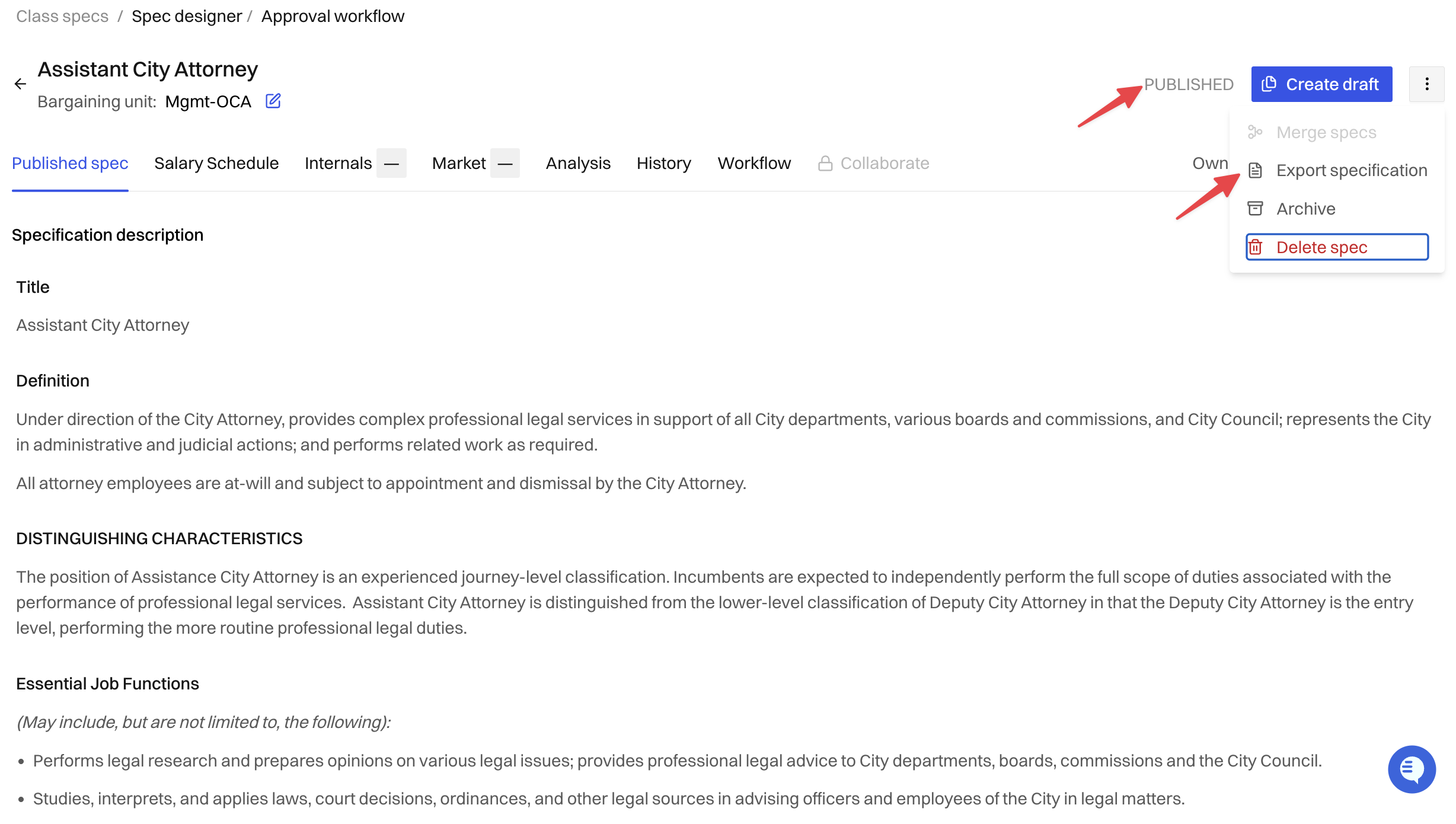
A published spec is your agency's current, approved version in Holly.
Note: Publishing a spec in Holly doesn't post it to your agency's website or job board. To use the published version elsewhere, export it from Holly and upload it to your website or other systems.
What you can do: View and export the spec, run analyses, merge it with similar specs, and see past published versions on the History tab.
To update it: Click Create Draft. The published version stays live until you publish the new one.
Deprecated
Holly sets this status, not your team. During a data refresh, if Holly notices a spec has been removed from your agency's website, it marks the spec as deprecated. This usually means the role isn't currently offered or your agency isn't hiring for it.
Deprecated specs aren't deleted. They stay in Holly for reference, so you can still look them up. If a deprecated spec should still be active, contact support@hollygov.com.
Quick Reference
Status | What it means | Can you edit it? | How to move on |
|---|---|---|---|
Imported | Brought into Holly from your agency's sources | No | Create Draft |
Draft | Your working copy | Yes | Send for approval, Publish without approval, or Discard draft |
In Review | Moving through your approval workflow | Reviewers can comment and suggest edits | Publish when approved, or cancel to return to Draft |
Published | Your current approved version in Holly | No | Create Draft to revise |
Deprecated | Removed from your agency's website; set by Holly | No | Contact support if it should be active |
Next Steps
Questions about a spec's status? Reach out to support@hollygov.com.
Related Articles
📄 A Class Specification in Holly: The tabs and actions on a spec page
📄 Editing a Class Specification: Rewrite with AI and Edit Manually: Edit a draft yourself or with Holly AI
📄 How Holly's Approval Workflow Works: How a draft moves through review