Editing a Class Specification: Rewrite with AI and Edit Manually
Last updated: October 26, 2026
Holly gives you three ways to improve a specification: edit it yourself, revise the whole spec with Holly AI, or highlight a passage and have AI rework just that text. This article helps you understand which approach is best for you and explains what to expect from each.
Different Approaches to Editing Specs in Holly
Situation | Best approach |
|---|---|
The spec is outdated or needs major restructuring | Holly AI → Revise with AI with detailed instructions |
The whole spec needs a quick cleanup (grammar, plain language, inclusive language, action verbs) | Holly AI → existing prompts such as Proofread or Plain Language |
One sentence or paragraph needs work | Highlight the text and choose an AI option |
You know exactly what to change | Edit manually by typing directly in the draft |
All three approaches happen in a draft, and you can combine them. For example, you might run a Holly AI revision, then highlight one paragraph to shorten it, then fix a word or two by hand.
Every AI change arrives as a suggestion you can keep or reject, so nothing in your spec changes until you approve it.
Starting a Draft
All edits happen in a draft, and the published version remains available in the History tab until you publish the new one.
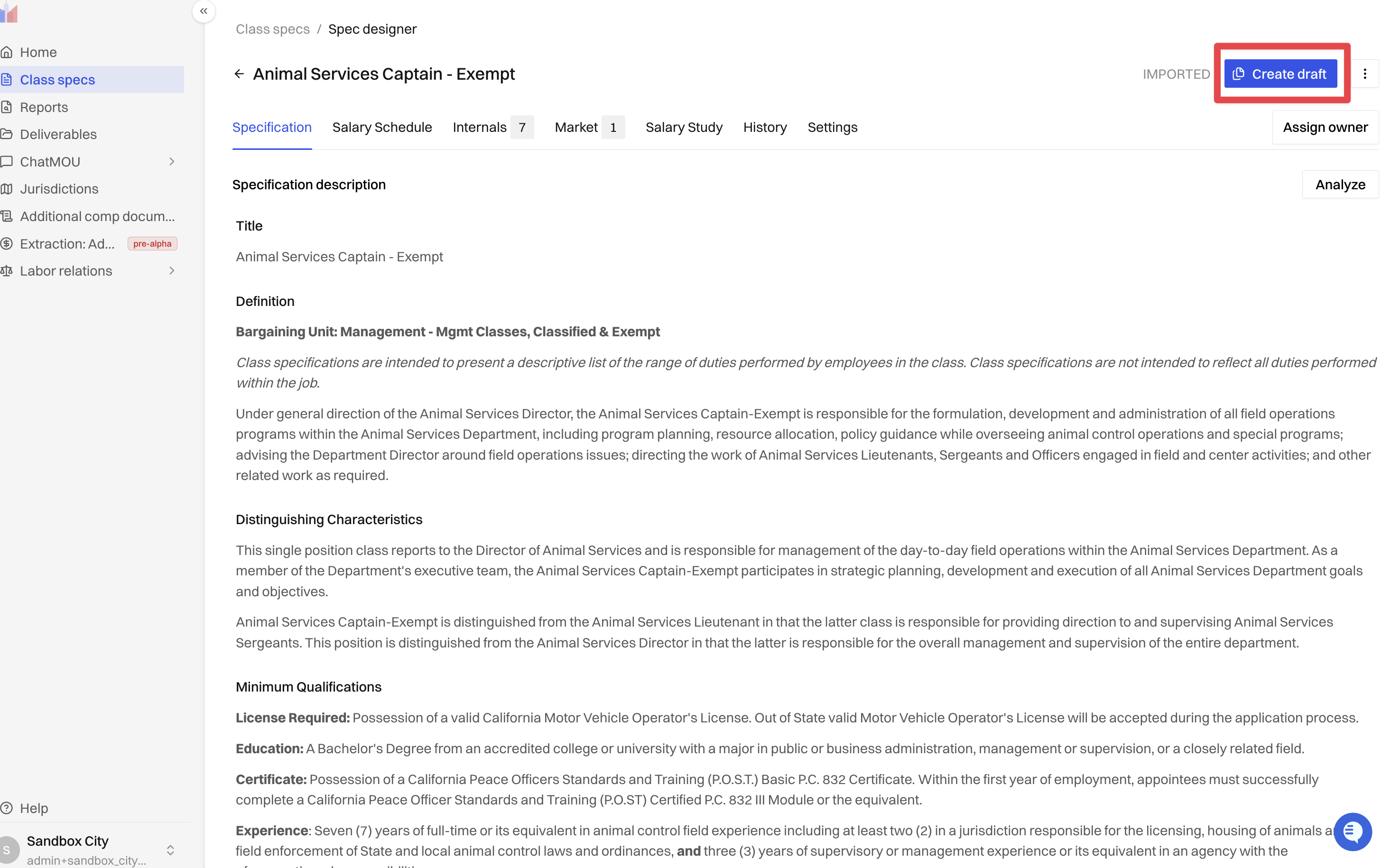
Open the class specification and go to the Spec editor tab.
Click Create Draft.
The draft opens in the editor with your current published content.
Manual Editing: Fix Specific Issues
Manual editing is the best choice when you know exactly what needs to change and want to keep the rest of the spec's language.
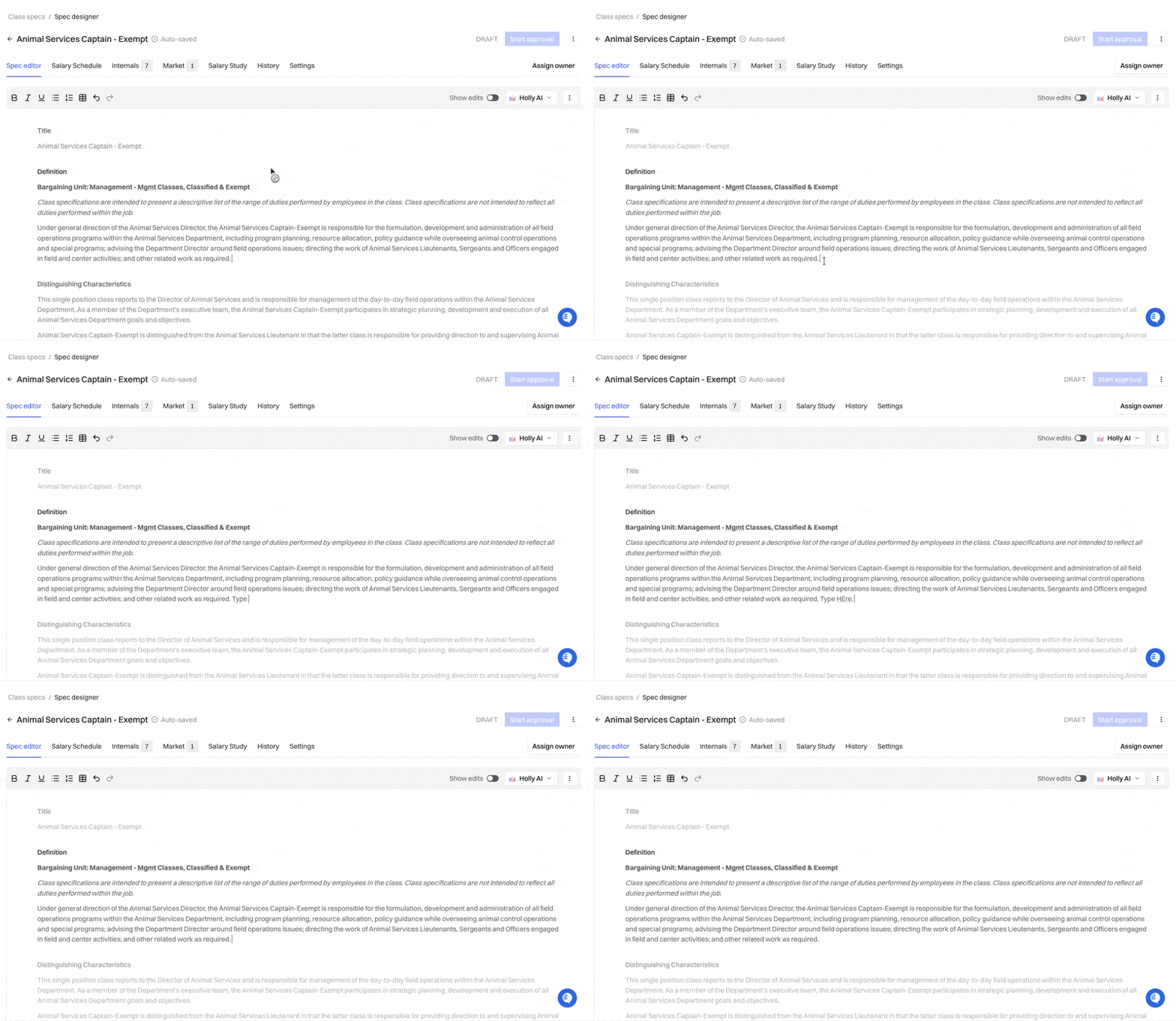
In your draft, click into any section.
Type, delete, or paste text the same way you would in a word processor.
Holly saves your changes automatically as you work.
Revising the Whole Spec with Holly AI
Use Holly AI when the spec needs changes across several sections, such as a reclassification, new duties, or updated minimum qualifications.
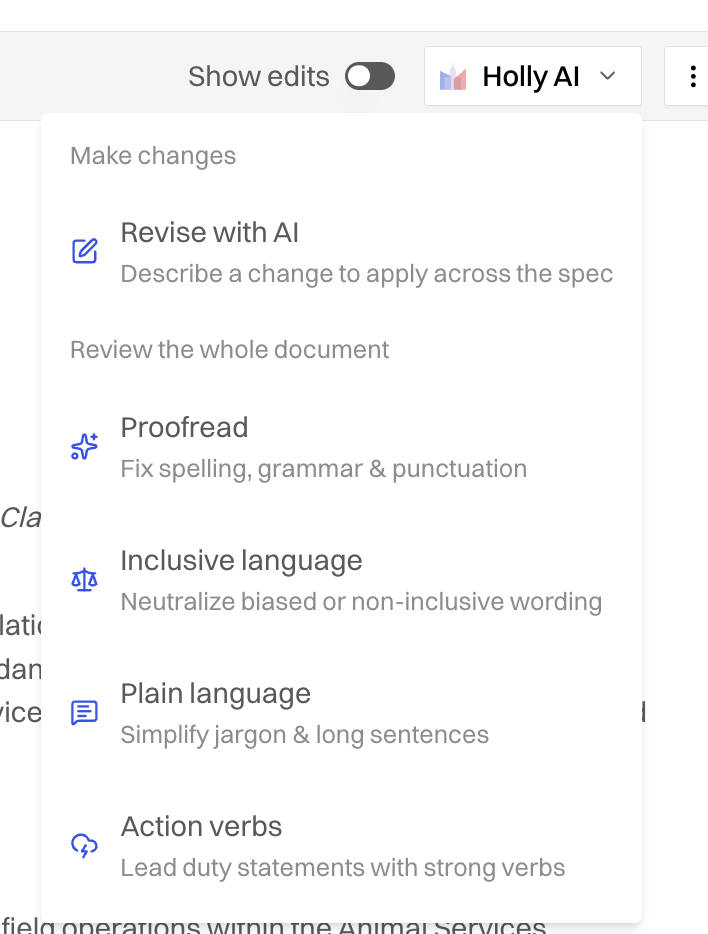
In your draft, click Holly AI.
Choose an option:
Revise with AI: Describe exactly what you want changed.
Proofread: Fix spelling and grammar.
Inclusive Language: Suggest more inclusive wording.
Plain Language: Make the language easier to read.
Action Verbs: Strengthen sentences with action verbs.
Holly adds its changes to your draft as suggestions.
Review each suggestion and choose Keep or Reject.
For sample prompts and tips on writing strong instructions, see 📄 How to use Holly AI on a Class Spec.
Tip: A broad request can sometimes change sections you didn't mention, such as the title. Review every section after a revision, not just the ones you asked about, and reject anything you didn't intend.
Editing a Specific Passage with AI
When the rest of the spec is in good shape and only one section needs work, highlight it and let Holly rework just that text.
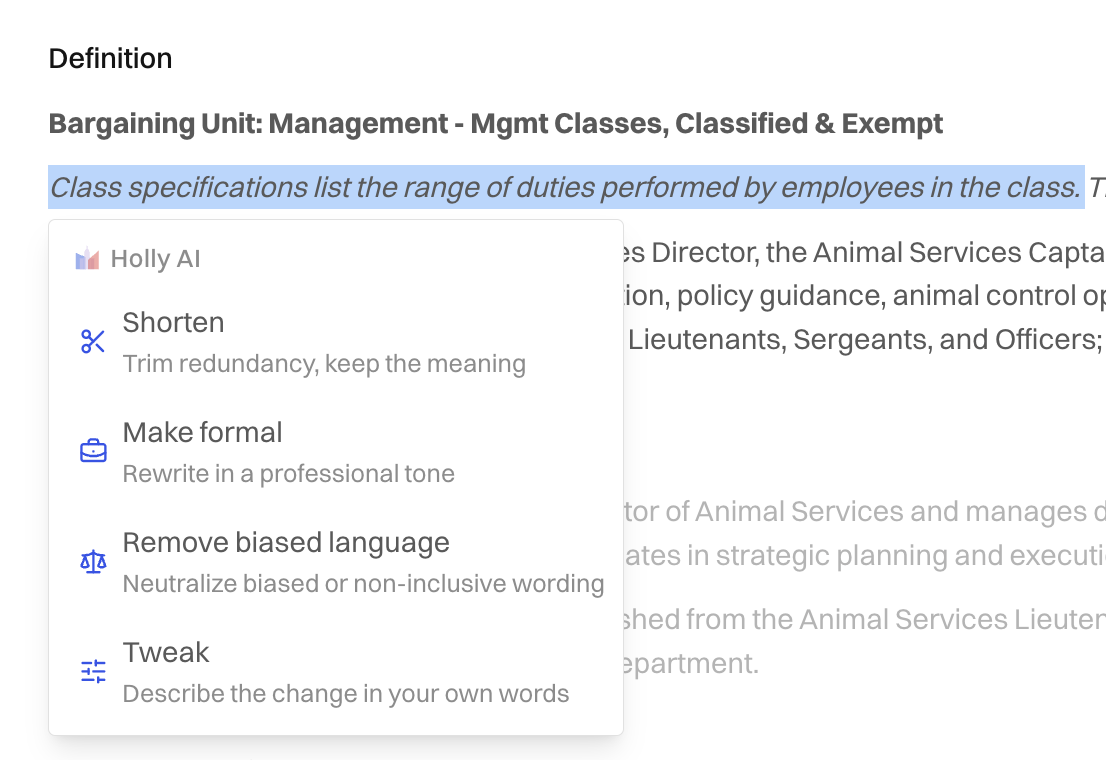
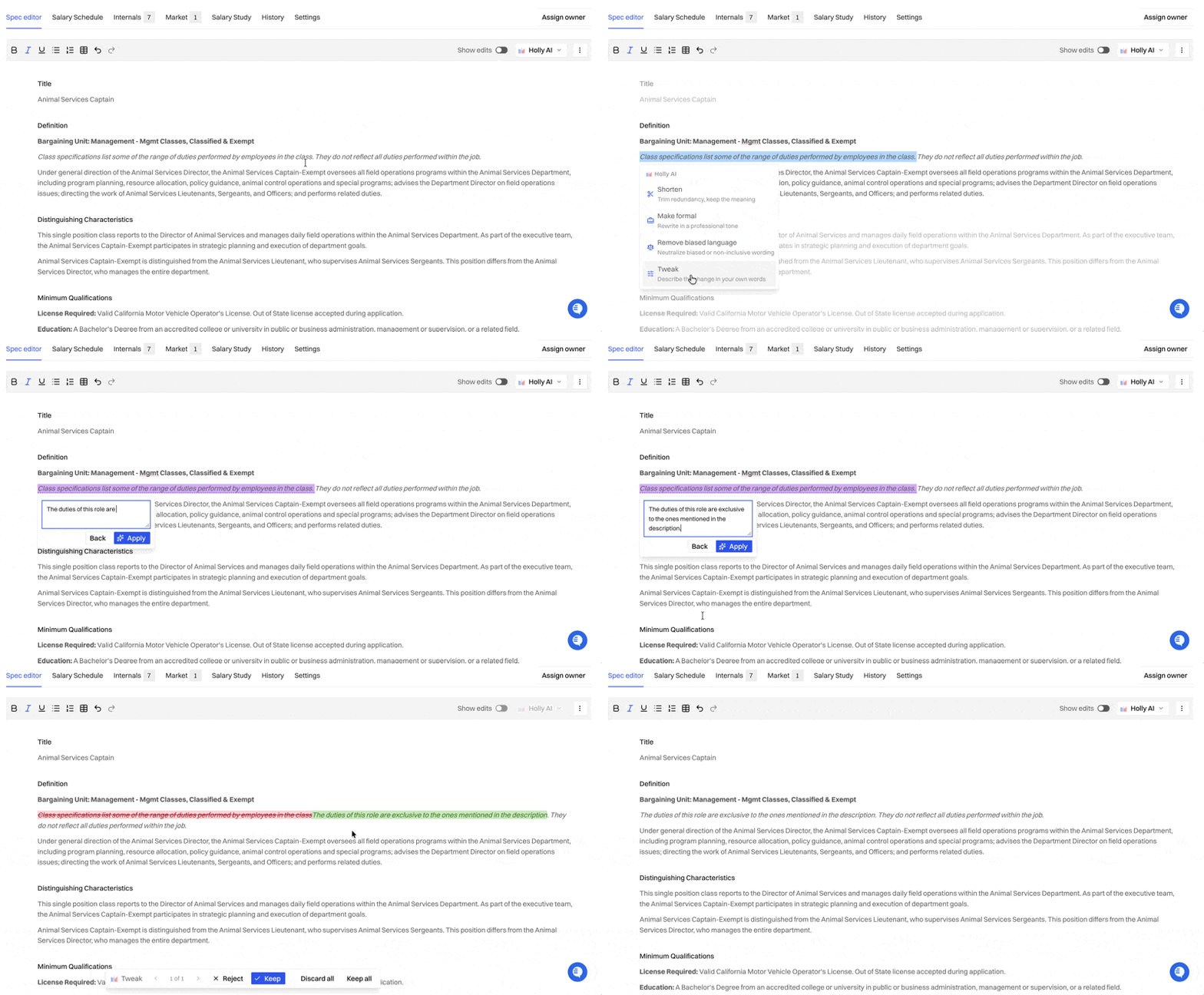
In your draft, highlight the text you want to change.
Choose an option from the menu that appears:
Shorten: Make the text more concise.
Make formal: Adjust the tone for an official document.
Remove biased language: Replace wording that may be exclusionary.
Tweak: Type your own instruction, such as "add a bilingual requirement."
Holly highlights the section it's working in and shows its changes as suggestions.
Choose Keep or Reject for each change.
Note: Your administrator controls who can use AI editing. If you don't see the menu when you highlight text, ask your Holly admin about your permissions.
Context-aware edits: Holly considers the rest of the specification when it suggests changes, so its wording stays consistent with your other sections.
Reviewing AI Suggestions
Every AI change, whether from Holly AI or a highlighted passage, arrives as a suggestion. Nothing is applied to your draft until you accept it.
Keep: Accepts the change into your draft.
Reject: Removes the change and restores the original text.
You can keep some changes and reject others from the same request. A few things to know while suggestions are waiting:
Typing is paused. If you try to type while suggestions are unresolved, Holly prompts you to keep or reject them first.
Resolve suggestions before you leave. Unresolved suggestions aren’t saved, so Holly warns you before you refresh or leave the page.
Tracking Your Changes
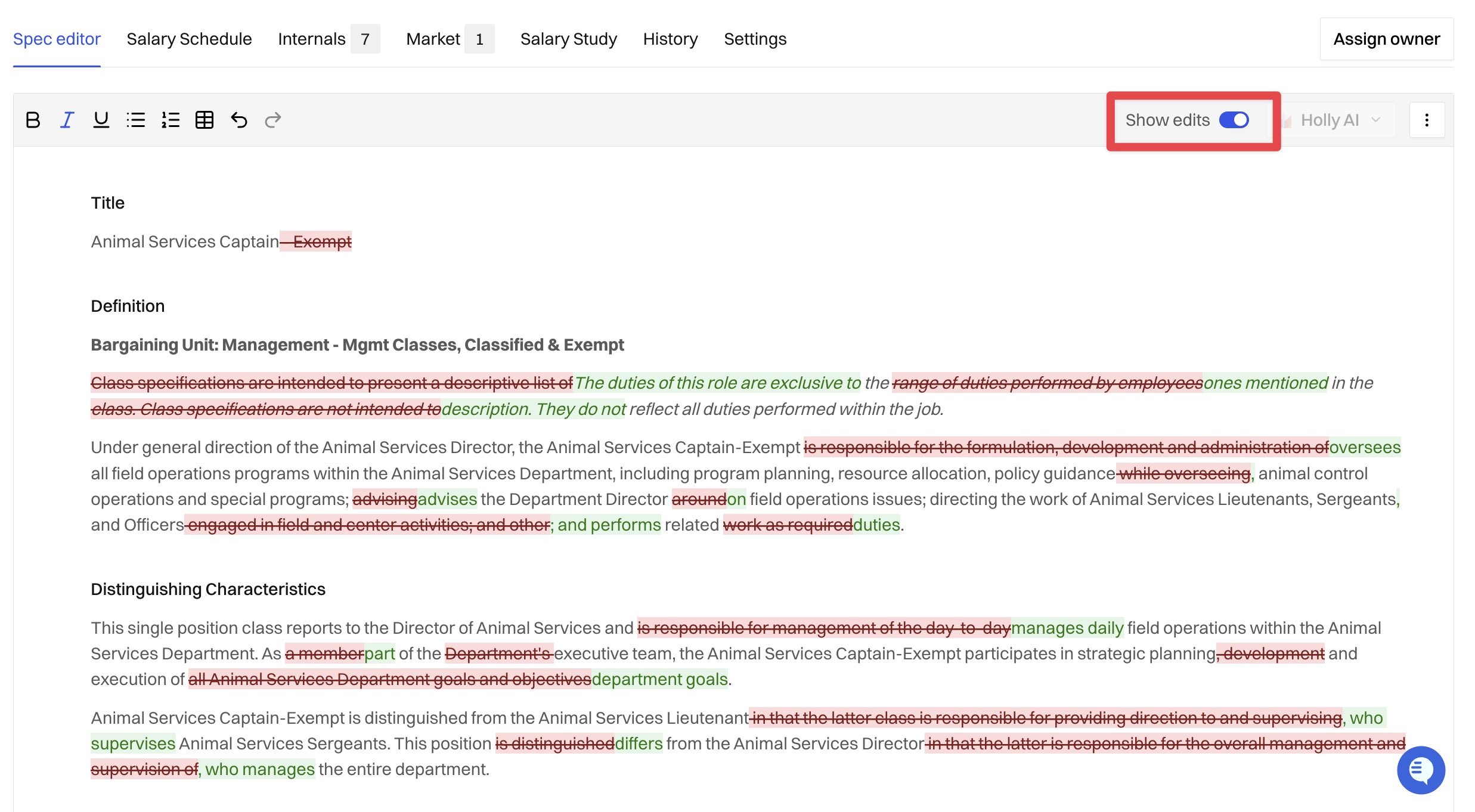
Show edits
Turn on Show edits to see every change in the draft compared to the last published version. Added text is underlined and removed text is struck through.
Rejecting a single change
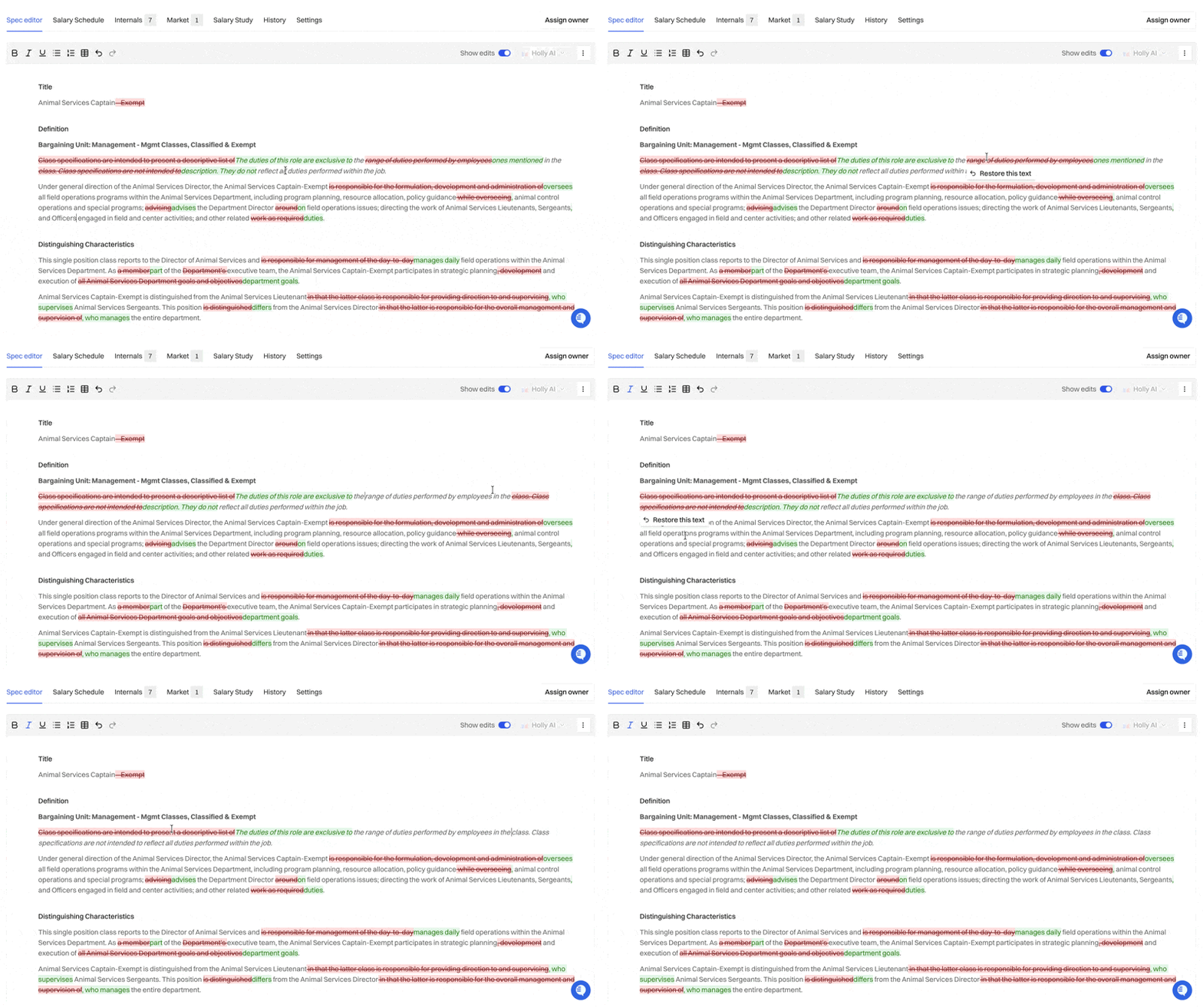
To undo one tracked change without affecting later edits, reject that redline with a single click. This is useful when one edit doesn't belong but everything else does.
Undoing a Change or Starting Over
If you don't like a result, you don't have to start over.
Reject an AI suggestion: Click Reject on any suggestion you haven't kept.
Reject one tracked change: Use the single-click reject on a redline.
Undo: Press Ctrl+Z (Cmd+Z on Mac) to step back through recent edits.
Start over completely: If you'd rather abandon the draft, discard it to return to the last published version.
Saving Your Work
Holly saves your work automatically so you don't lose progress while editing.
Auto-save: Changes save every few seconds as you work.
Draft status: Everything stays in draft until you submit it for approval.
Versions: Holly keeps a record of every change and who made it.
Unresolved suggestions: AI suggestions you haven't kept or rejected aren't saved, so resolve them before you leave the page.
Related Articles
📄 How to use Holly AI on a Class Spec: Sample prompts and tips for revising a spec with AI
📄 How to Write Effective AI Prompts in Holly: Write instructions that get better results
📄 The History Tab: View and download earlier published versions of a spec
📄 How to Publish a Specification: Move your finished draft through approval and publishing