A Class Specification in Holly
Last updated: November 18, 2026
Open any spec from your dashboard and you'll find everything about that classification in one place: the full document, available actions, and tabs for benchmarking and history.
What You See When You Open a Spec
When you click into a specification, the top of the page shows the job title, title code, and current status. Below that, tabs organize everything else:
Specification: The full job description.
If the spec is in Draft status, you will see the Spec Editor tab, where you create and edit drafts. For more information, see 📄 Editing a Class Specification: Rewrite with AI and Edit Manually. You will also see the Published Spec tab, where the current published version of the spec is live.
Salary Schedule: The salary range and pay details linked to this classification.
Workflow (if spec is In Review): The approval workflow's progress and reviewer notes, if the spec is in review.
Internals: How this role compares to similar classifications within your organization. For more information, see 📄 How Benchmarking Works in Holly.
Market: External benchmarking against comparator jurisdictions. For more information, see 📄 How Benchmarking Works in Holly.
Analysis: Every analysis run on this spec, such as FLSA, EEO-4, or a Qualification Standards Analysis, with the date and who ran it.
History: A record of published versions over time. For more information, see 📄 The History Tab.

Reading Specification Content
Holly displays your specification using your organization's customized template. The exact sections vary by jurisdiction, but common components include:
Job title and definition
Examples of duties
Knowledge, skills, and abilities
Minimum qualifications
Distinguishing characteristics
Physical or working conditions
Special requirements
Your template was configured during implementation to match your organization's existing format.
Available Actions
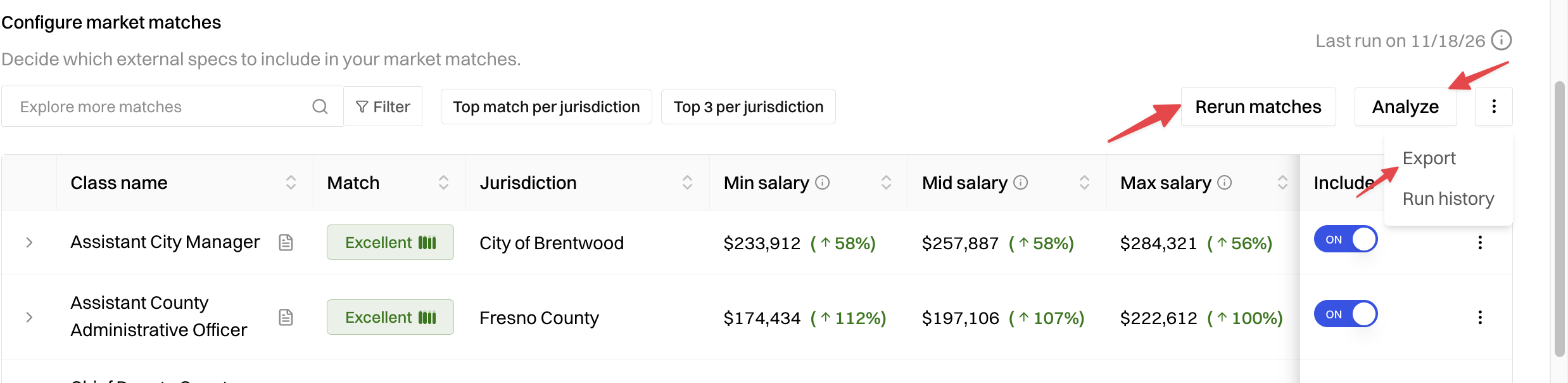
The actions available on a spec change depending on its current status. Editing tools like Holly AI and Versions (the clock icon) appear in the spec editor. Run analyses from the Analyze button on a published or imported spec, or from the three-dot menu on a draft. You can't run analyses while a spec is In Review. To run a Qualification Standards Analysis, use Analyze on the Market tab, next to Rerun matches. Export is in the page's three-dot menu.
Action | What it does | Draft | Published |
|---|---|---|---|
Holly AI | Revise the spec with AI or run a quick prompt like Proofread or Plain Language. Changes arrive as suggestions you keep or reject. | ✓ | x |
Versions | See who changed what and when in the draft, and open prompt history | ✓ | x |
Analyze | Run Driver's License, FLSA, Skills-based hiring, ADA, EEO-4, Interview Questions, or Equity & Bias analyses. Results are saved on the Analysis tab. | ✓ | ✓ |
Export | Download the spec as a Word doc or PDF | ✓ | ✓ |
Source link | View linked external resources | ✓ | ✓ |
Create Draft | Open a working copy you can edit without changing the published version | x | ✓ |
Merge Specs | Combine this classification with similar ones | x | ✓ |
Delete Draft | Remove the draft permanently. Note: published specifications can't be deleted. | ✓ | x |
For more information about editing class specs, see 📄 Editing a Class Specification: Rewrite with AI and Edit Manually.