How to Turn On Dark Mode on the Holly Platform
Last updated: September 23, 2026
Learn how to switch Holly to a darker color scheme that can be easier on your eyes.
What is Dark Mode?
Dark mode is a display setting that changes the app and website background from light to dark. Dark mode is off by default. You can turn it on or off at any time, and it only changes how Holly looks for you. Your colleagues' screens and your agency's data stay the same.
How to Turn On Dark Mode
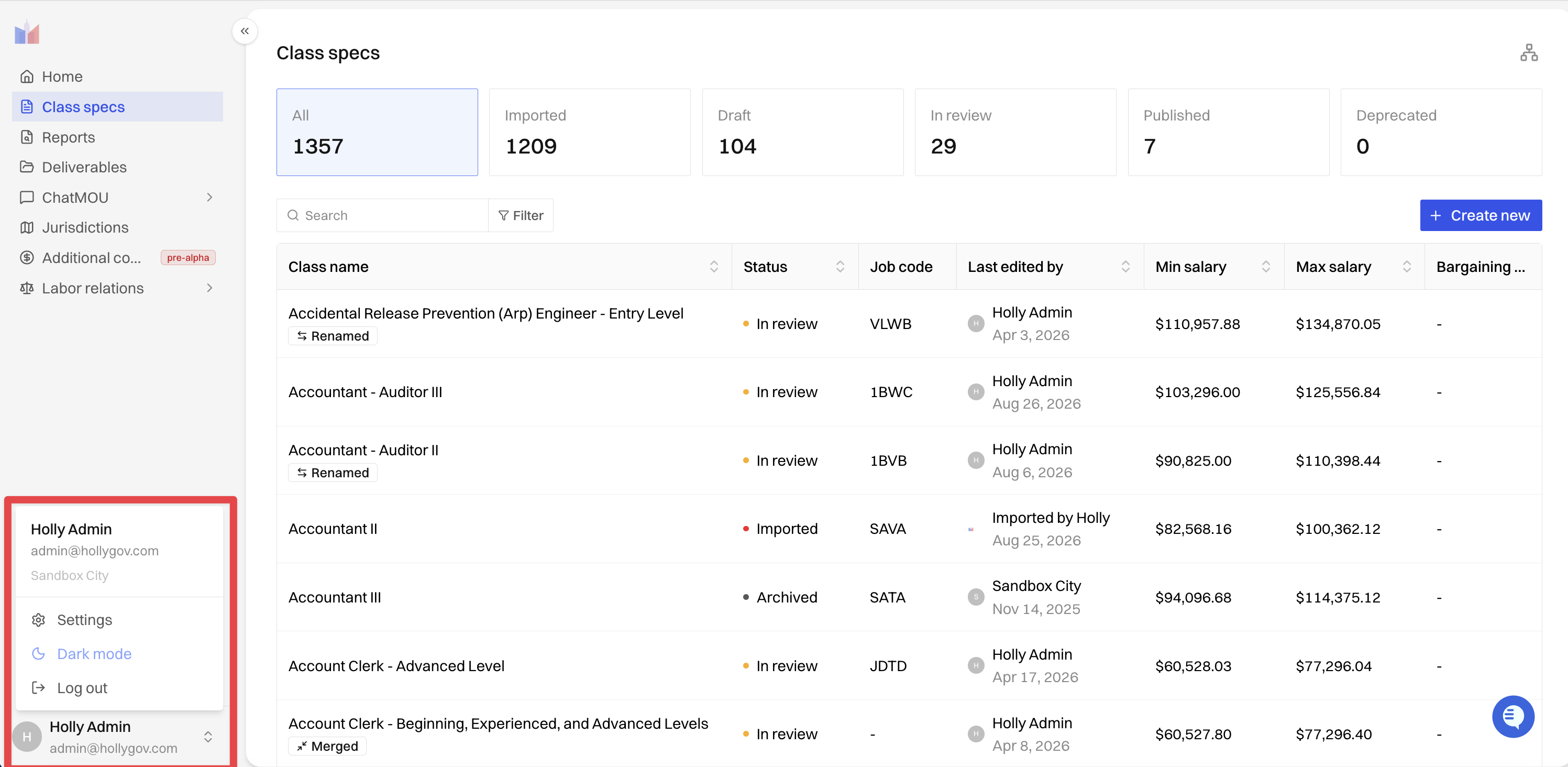
Click your name or profile picture at the bottom of Holly's left sidebar to open the user menu.
Select Dark Mode.
Holly switches to dark mode right away. You don't need to refresh the page.
How to Switch Back to Light Mode
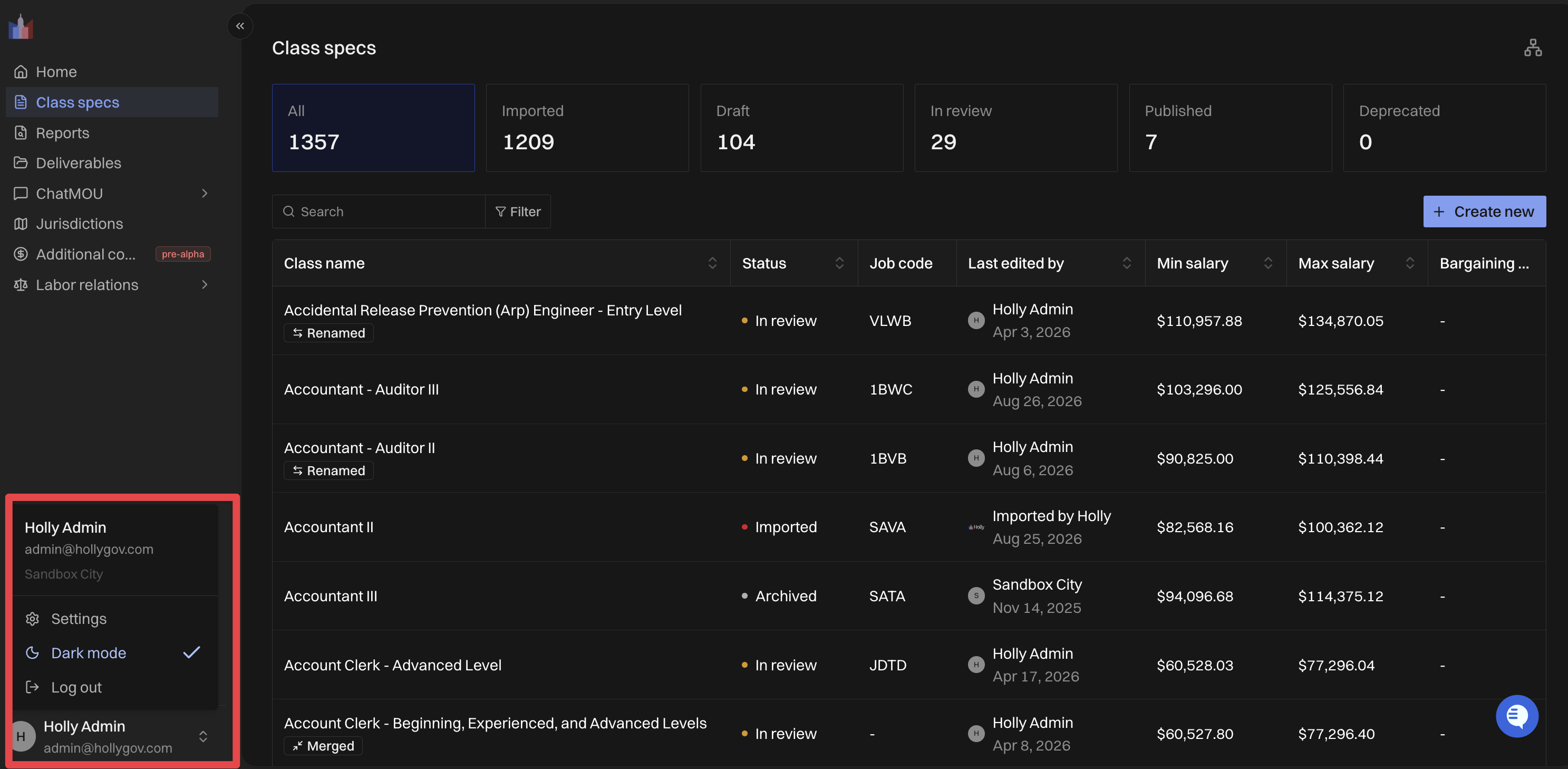
Open the user menu again by clicking your name or profile picture.
Select Dark Mode again to turn it off.
Good to Know
Use for Comfort: Many people find dark mode more comfortable to use during long work sessions, in dim rooms, or for anyone sensitive to bright screens.
Individual setting: Dark mode applies only to your account. It does not change the display for other users at your agency.
No effect on data: Class specs, reports, and workflows appear in different colors, but their content does not change.
If you have any feedback on this feature, let us know at support@hollygov.com.