How to Complete a Read-Only Review
Last updated: November 18, 2026
If you've been asked to do a read-only review, you can read the specification and share your feedback in one overall note, but you can't edit the text or leave comments on it.
What Is a Read-Only Review?
Some reviewers need to see a specification and sign off on it without changing the wording. For these reviewers, the document owner can set their step of the approval workflow to read-only.
In a read-only review, you can:
Read the full specification
Leave one overall note with your feedback when you finish
Mark your review complete so the workflow can move forward
You can't type in the specification, suggest edits, or add comments on specific text.
Note: Holly doesn't show a message saying your review is read-only. If you can't type in the specification or add comments, your step is read-only. Your feedback goes in the note when you finish your review.
How to Complete a Read-Only Review
Open the link in your email from Holly.
Read through the specification. Note any section that needs attention.
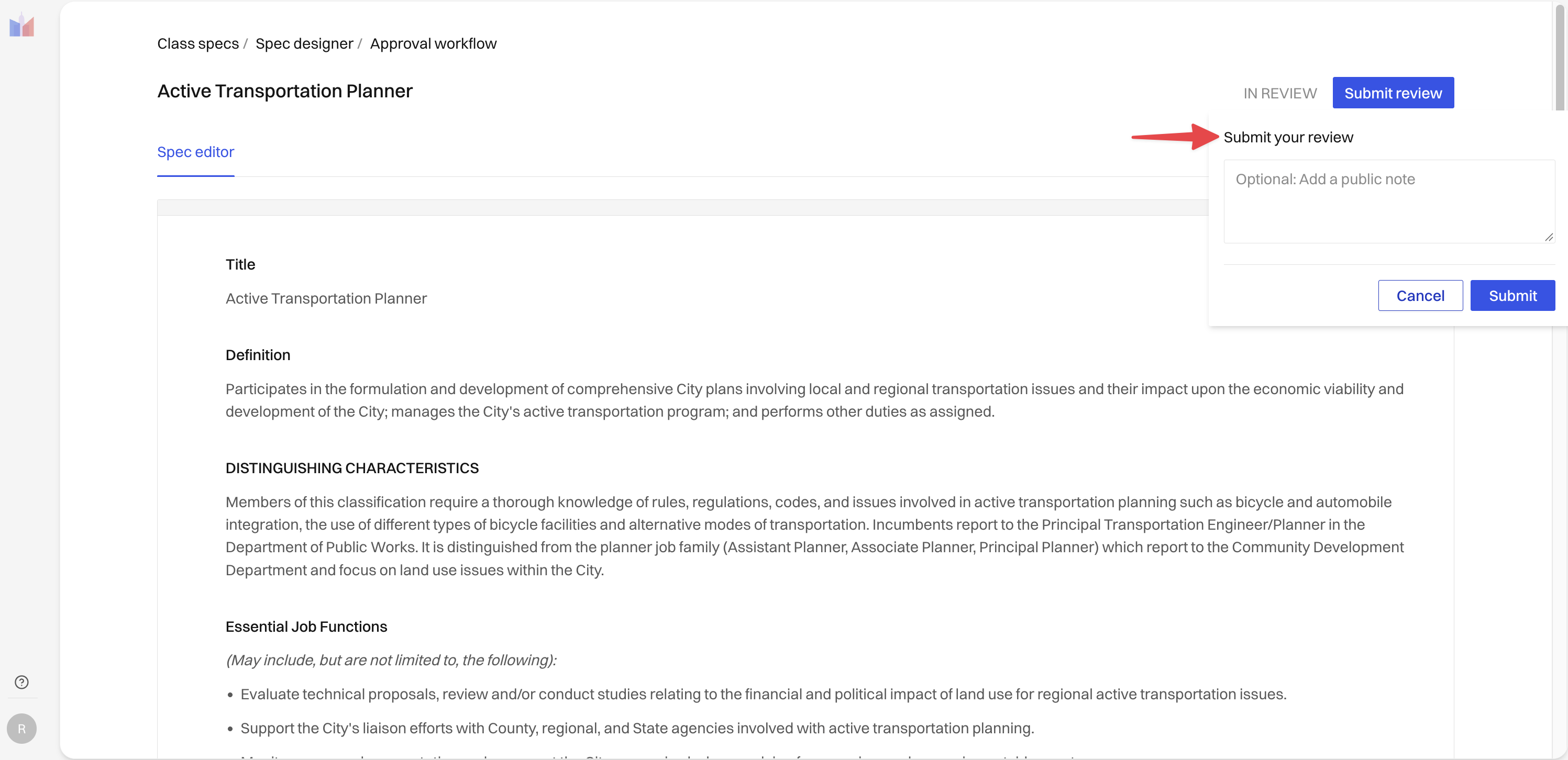
When you're ready, click Submit review.
In the window that opens, write your feedback in the note field. This is the only place your feedback is recorded, so include everything you want the document owner to see.
Click Submit.
What Happens Next
When you finish, your step is marked complete and the document owner sees your note. Once everyone in your stage has finished, the workflow moves on to the next stage or to publishing.
Make sure to submit your review even if you have no feedback. The workflow can't move forward until every reviewer in your step has submitted.
Next Steps
Questions about your review? Contact the document owner who sent it, or reach out to support@hollygov.com.
Related Articles
📄 How to Review a Specification in Holly as an External Reviewer: Reviewing without a Holly account
📄 How to Review a Specification as a Holly User: Reviewing with comments and suggested edits
📄 Stages vs. Steps in the Approval Workflow: How review steps and stages work