How to Review a Specification as a Holly User
Last updated: November 18, 2026
How to read through a specification, leave comments or suggested edits, and mark your review complete. This article is for reviewers with a Holly account.
If you don't have a Holly account, see 📄 How to Review a Specification in Holly as an External Reviewer instead. For background on how the approval workflow fits together, see 📄 How Holly's Approval Workflow Works.
Getting Started
Click the link in your email notification to open the specification. Your email includes the name of the specification and may include a note from the document owner about what they'd like you to focus on. If you aren't already logged in, you'll be prompted to log in first and then redirected to the specification.
The specification opens on the Spec editor tab, which is where you'll do all of your editing, commenting, and reviewing. When you open a review, you're in Suggesting mode. Any change you type becomes a suggested edit for the document owner to accept or reject, and you can leave comments at the same time.
Can't type or add comments? Your step may be read-only. In a read-only review, you can't edit the spec or comment on the text. Leave your feedback in the note when you submit your review. See 📄 How to Complete a Read-Only Review.
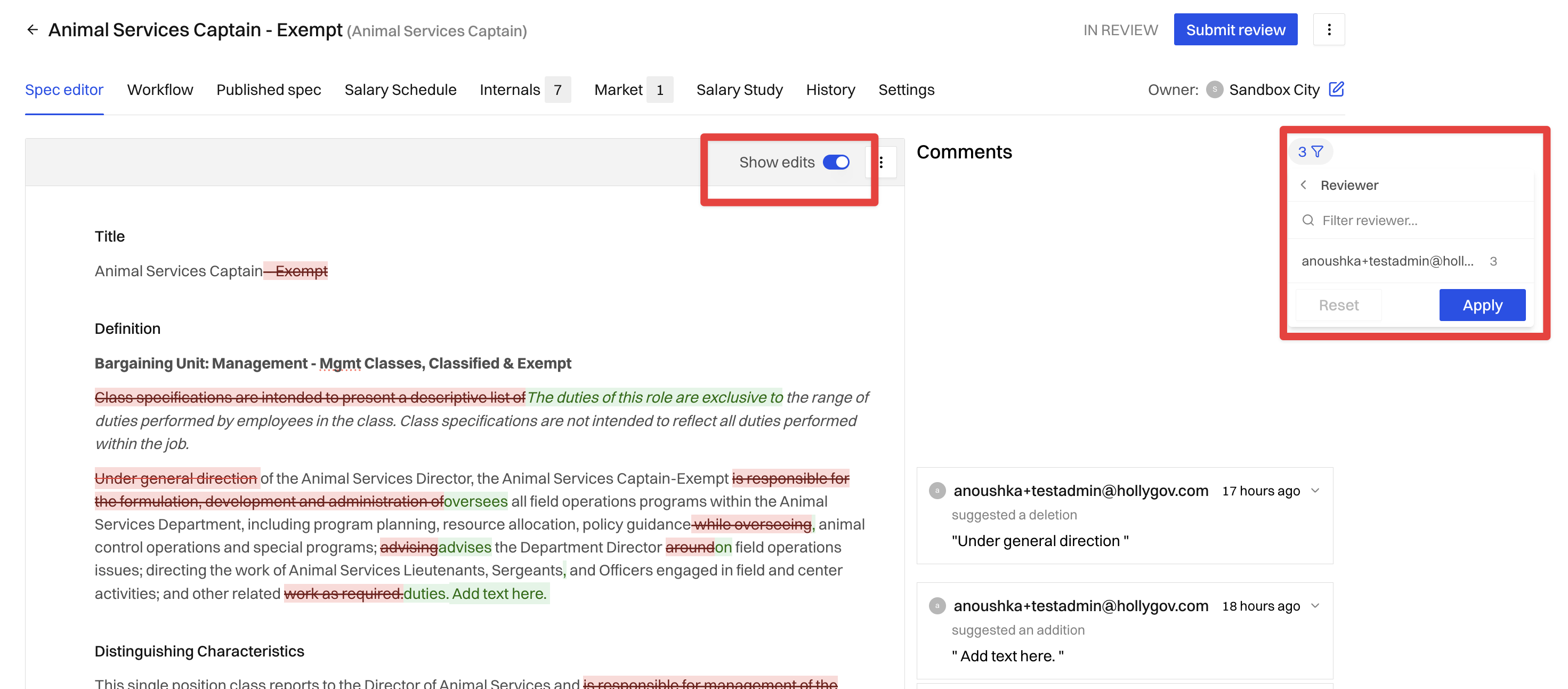
Show edits
Turn on Show edits to see every suggested change in the document. Added text is underlined and removed text is struck through, with a different color for each reviewer. Use the filter to see edits from all users or only your own.
Providing Feedback
You have two ways to leave feedback, and they serve different purposes.
Comments
Use comments for questions, concerns, or feedback that doesn't require a specific text change. To add one, select the text you're commenting on or click + Add comment in the Comments panel on the right, then write your comment and submit.
Comments show up in the Comments panel, where a filter dropdown lets you focus on what matters most:
Open: Comments and suggestions that haven't been resolved, accepted, or rejected yet
Resolved: Comments marked as handled. Resolved comments appear greyed out in the document.
Accepted: Suggestions the document owner has approved
Rejected: Suggestions the document owner has declined
All: Everything, useful for reviewing the full history
Comments from external reviewers show the name they entered when they opened the review.
Suggested Edits
Use suggested edits when you know exactly what the text should say. Edit the text directly: additions appear underlined and deletions appear as strikethrough. The document owner sees each suggestion and can accept or reject it individually.
Completing Your Review
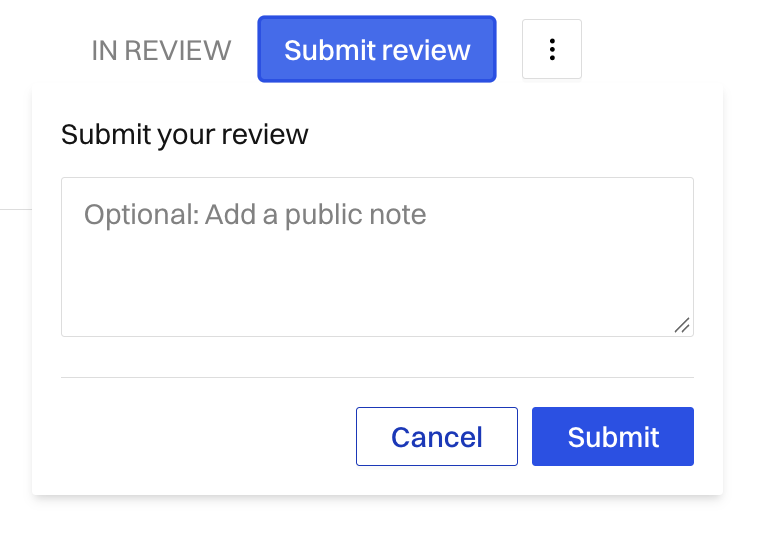
Once you've added all your feedback, click Submit review. You'll see a window where you can optionally add a public note, a general comment not tied to any specific section. It's useful for a summary thought like "Looks good, just flagged a couple of questions on the qualifications section." Click Submit.
The workflow can't advance to the next step until everyone assigned to your step has finished their review, so don't skip this even if you're done adding feedback.
Next Steps
After you finish your review, the document owner will work through the feedback from your step and either respond, accept, or reject what you've submitted.