How to use Holly AI on a Class Spec
Last updated: November 18, 2026
Use Holly AI to revise a class specification based on instructions you provide, or to rework a specific passage, instead of editing everything yourself.
Note: AI-generated content is a starting point, not a final product. Always review AI suggestions for accuracy, alignment with your agency's classification system, and compliance with applicable civil service rules before publishing or adopting a specification.
What is Holly AI?
A spec becomes outdated for a lot of reasons. Duties shift, the language goes stale, minimum qualifications stop matching what the role actually requires, or a reclassification study changes the scope of the position entirely.
Holly AI takes your existing specification as its starting point and suggests changes based on the instructions you provide. You're not starting from scratch. You're directing a targeted revision, and the more specific your instructions, the closer the output will be to what you need.
Every AI change arrives as a suggestion. You choose Keep or Reject for each one, so nothing in your spec changes until you approve it.
How to Revise a Spec with Holly AI
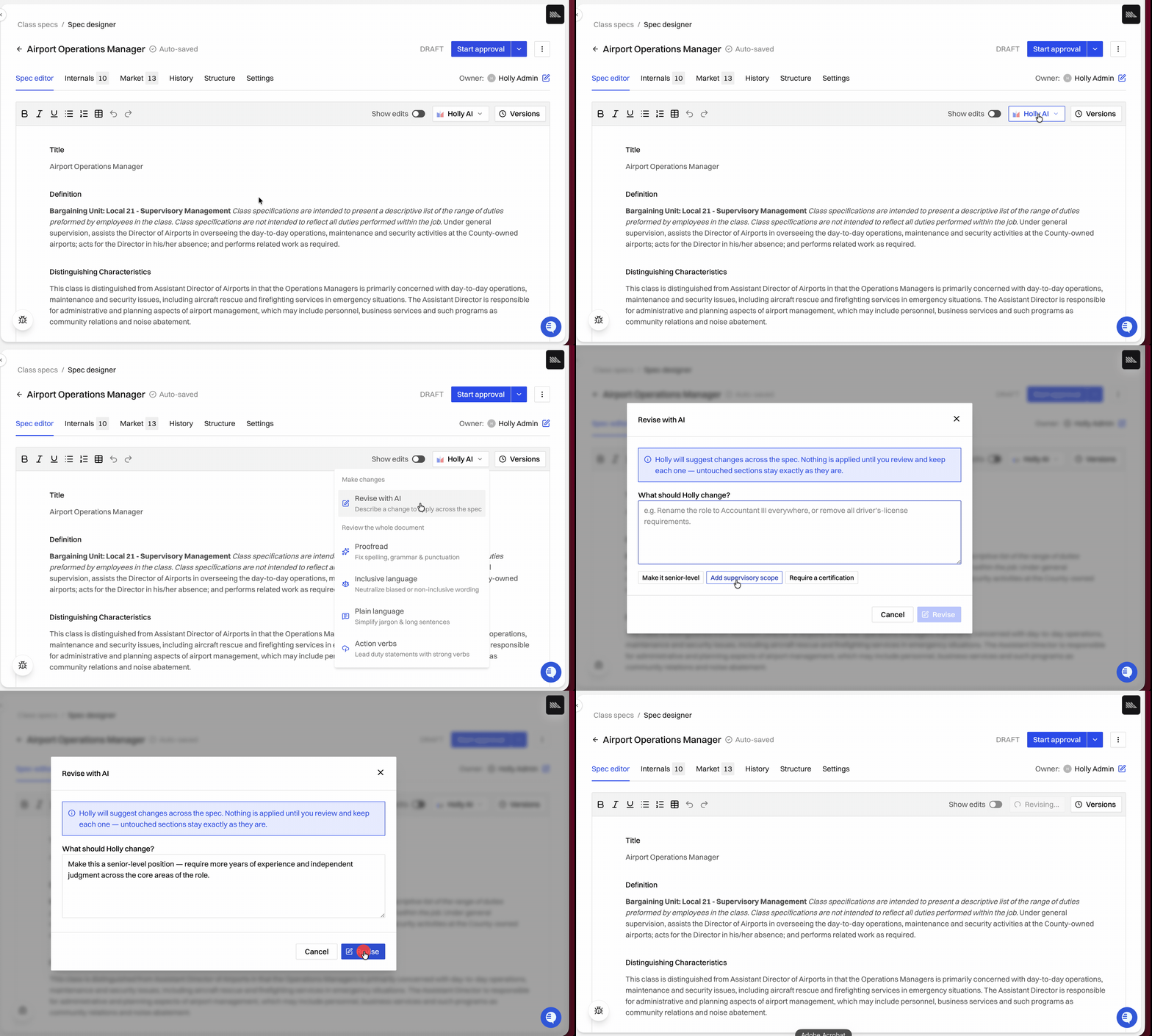
Open the class specification you want to revise and Start Draft.
Click Holly AI.
Select the type of revision you want:
Open-ended prompt:
Revise with AI: Specify exactly what you want changed.
Quick prompts:
Proofread: Corrects spelling and grammar errors (e.g., commas).
Inclusive Language: Suggests changes to make the specification more inclusive.
Plain Language: Makes the language approachable and readable for everyone.
Action Verbs: Uses action verbs in sentences where relevant.
If you chose Revise with AI, enter your instructions. If you're not sure where to start, select one of the suggested prompts and edit it to fit your situation.
Submit your request. Holly adds its changes to your draft as suggestions.
Review each suggestion and choose Keep to accept it or Reject to remove it.
How to Revise a Specific Passage
When only one sentence or paragraph needs work, highlight it and let Holly rework just that text.
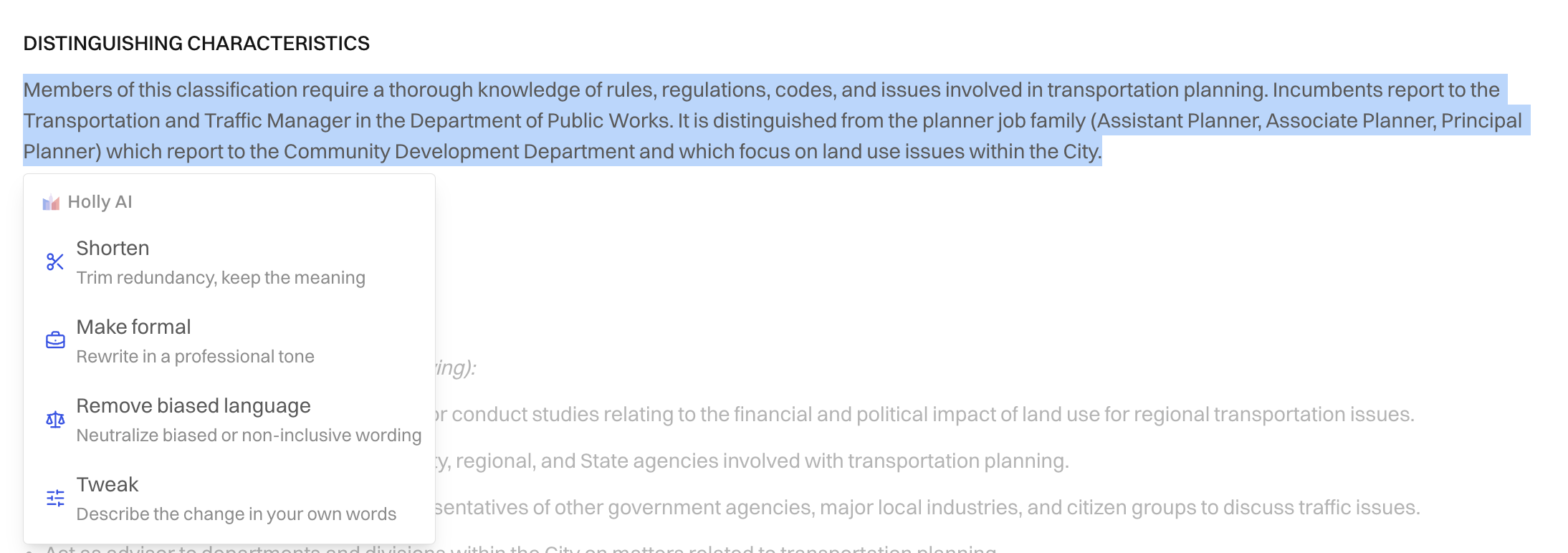
In your draft, highlight the text you want to change.
Choose an option from the menu that appears:
Shorten: Make the text more concise.
Make formal: Adjust the tone for an official document.
Remove biased language: Replace wording that may be exclusionary.
Tweak: Type your own instruction, such as "add a bilingual requirement."
Review the suggestions and choose Keep or Reject for each change.
What to Put in Your Instructions
Holly already has your existing spec. What it needs from you is direction. Think of your instructions as a note to a colleague who's been asked to revise the document.
The more information you provide, the better the output. Specific, targeted instructions will produce a meaningful revision.
For a deeper dive into what makes a good AI prompt, see 📄 How to Write Effective AI Prompts in Holly.
Tip: If you're not sure how to phrase your instructions, click one of the suggested prompts for a starting point you can edit.
After You Revise with AI
Holly adds its suggested changes to your draft. Nothing is applied until you choose Keep or Reject for each one, and you can keep some changes and reject others from the same request.
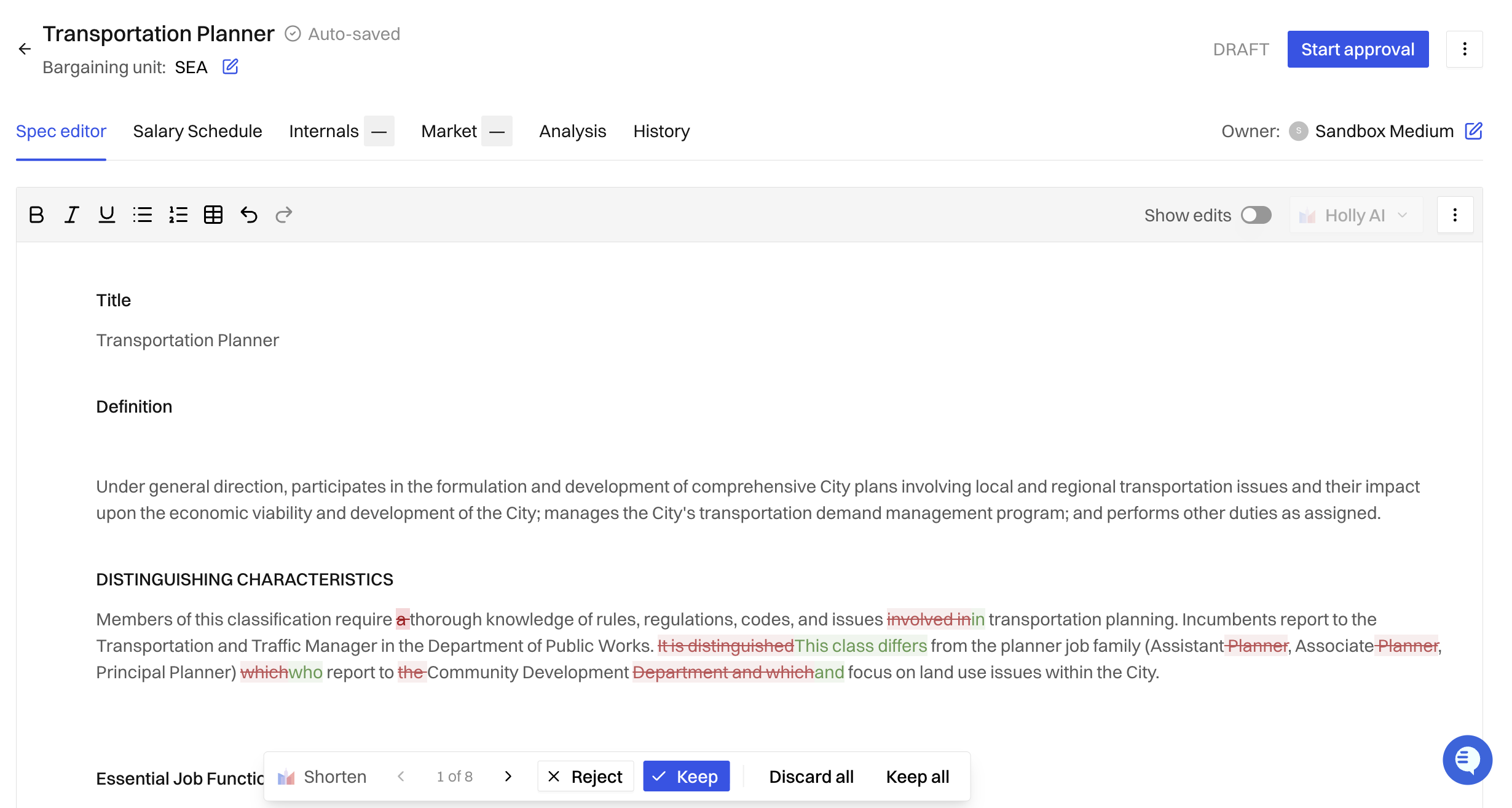
A few things to know while suggestions are waiting:
Typing is paused. If you try to type while suggestions are unresolved, Holly prompts you to keep or reject them first.
Leaving the page loses them. Holly warns you before you refresh or navigate away with unresolved suggestions, because they won't be saved.
Once you've reviewed the suggestions, you can:
Turn on Show edits to compare your draft against the published version. Added text is underlined and removed text is struck through.
Edit any section directly in the spec editor
Make another request with updated instructions if the first pass missed the mark
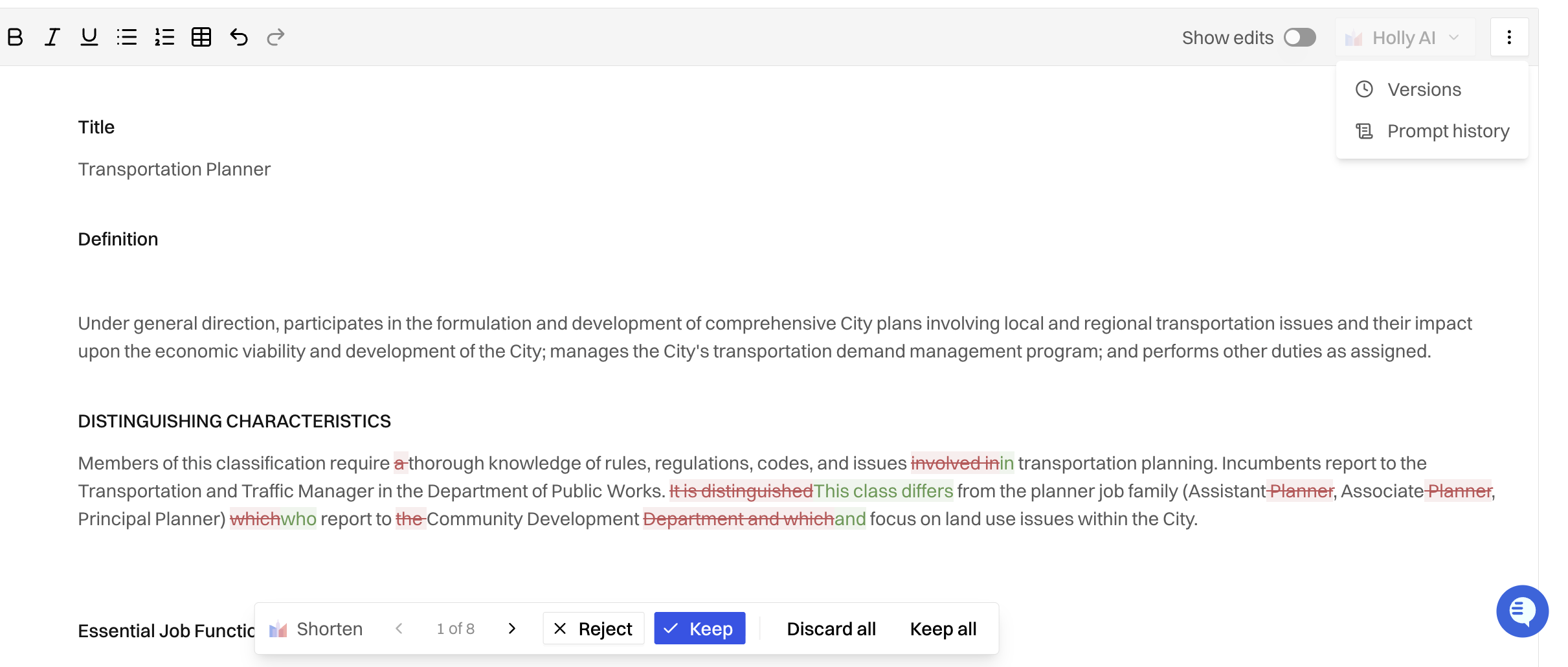
Open the editor's three-dot menu to see Prompt History and Versions, a record of every AI request and what Holly produced
If you want to understand how Holly AI compares to other editing options, see 📄 Editing a Class Specification: Rewrite with AI and Edit Manually.